If your organization runs on Microsoft 365, you already own one of the most powerful document management platforms on the planet — you just may not have configured it that way. SharePoint Online, OneDrive, and Teams together can serve as a full enterprise Document Management System (DMS), but the difference between chaos and clarity comes down to how you set it up.
This guide walks through everything you need: high-level setup steps, architecture choices, metadata strategy, real industry examples, and the costly mistakes most organizations make. Whether you are migrating from a network file server, fixing a sprawling SharePoint tenant, or starting fresh, you will leave with a clear playbook.
Table of Contents
- What is a Document Management System in SharePoint and M365?
- High-Level Setup Guide with Practical Tips
- Best Practices for SharePoint Document Management
- Different Ways to Structure Your Organizational Files
- Why Metadata Matters and How to Get It Right
- Real-World Examples from Three Industries
- Top 10 Mistakes Companies Make with SharePoint DMS
- Frequently Asked Questions (AI-Friendly Q&A)
- Why Titan Workspace Is the Smarter Way to Run a DMS on M365
1. What is a Document Management System in SharePoint and Microsoft 365?
A Document Management System is the combination of technology, structure, and policy that controls how documents are created, stored, accessed, versioned, retained, and eventually disposed of. In Microsoft 365, a DMS is built primarily on SharePoint Online (for shared business content), OneDrive for Business (for personal drafts), Microsoft Teams (for collaboration surfaces), and Microsoft Purview (for compliance, retention, and DLP).
The platform gives you the raw ingredients — sites, libraries, content types, metadata columns, retention labels, sensitivity labels, version history, and Power Automate workflows. The DMS is what emerges when you assemble those ingredients into a deliberate system that matches how your organization actually works.
Done well, a SharePoint and M365 DMS replaces shared drives, cuts hours of file-hunting per employee per week, satisfies auditors, and turns your documents into searchable knowledge. Done poorly, it becomes a more expensive version of the network folder mess you were trying to escape.
2. High-Level Setup Guide with Practical Tips
You do not set up a SharePoint DMS in an afternoon. Treat it as a project with five distinct phases.
Phase 1: Discovery and Information Architecture
Before you create a single site, map out who creates documents, who consumes them, and how those documents are governed. Interview every department. Inventory existing content sources — file servers, OneDrive accounts, email attachments, legacy DMS tools, third-party clouds. Identify content types that need formal lifecycle control: contracts, SOPs, engineering drawings, policies, customer records, financial reports.
Tip: Build a one-page “content map” showing every major content domain (HR, Finance, Engineering, Sales, Quality), who owns it, and what regulatory requirements apply. This document becomes the blueprint for your site architecture.
Phase 2: Design Your Site and Hub Structure
Decide whether you will use a flat structure (one site per department), a hub-and-spoke model (a central hub site connecting departmental sites), or a hybrid. For most mid-sized and enterprise organizations, hub sites are the right answer — they let you roll up navigation, search, and branding across many associated sites without nesting them.
Tip: Avoid the temptation to recreate your network drive’s deep folder tree as a deep SharePoint site tree. SharePoint is flatter by design. Nest no more than three levels of sites: tenant → hub → site → library.
Phase 3: Configure Libraries, Content Types, and Metadata
Within each site, libraries hold documents. Create separate libraries for distinct content types when their security, retention, or metadata differs. Define site columns centrally so the same metadata definitions are reused across libraries. Build content types for documents that have a recognizable shape — an Invoice content type, a Policy content type, a Drawing content type — each with its own metadata and template.
Tip: Create a single managed metadata term store for organization-wide values like Department, Region, Project Code, and Document Status. This avoids the curse of free-text fields where one user types “Finance” and another types “Fin Dept” and search splits in two.
Phase 4: Apply Governance, Security, and Compliance
Set up sensitivity labels for confidentiality classification, retention labels for lifecycle management, and DLP policies for data leakage prevention — all from Microsoft Purview. Configure permission groups at the site level and avoid item-level or folder-level permission breaks unless absolutely necessary. Enable versioning on every library, and set sensible major/minor version limits.
Tip: Document your permission model in writing. “Who has access to what, and why?” should be answerable in one minute, not three meetings.
Phase 5: Migrate, Train, and Iterate
Use a tool like SharePoint Migration Manager or Mover for the move. Migrate by content domain, not by user, so you can clean up as you go. Run two waves of training — one for power users and content owners, another for end users. After 30, 60, and 90 days, review search analytics, abandoned drafts, and permission requests to refine the system.
Tip: Never lift-and-shift a messy file server one-for-one into SharePoint. Migration is your one chance to clean house — take it.
3. Best Practices for SharePoint Document Management
After dozens of implementations, the following practices separate the systems that work from the ones that get abandoned.
Use libraries, not folders, as your primary organizing unit. A folder is a container; a library is a container with metadata, views, workflows, and policies. Libraries scale; folders do not.
Standardize naming conventions early. Decide once whether you will use spaces, dashes, or underscores in file names. Decide whether dates go YYYY-MM-DD (recommended) or some other format. Publish the standard and enforce it.
Use views instead of folders to slice content. A library with 50,000 documents, the right metadata, and well-designed views is more usable than the same content spread across hundreds of folders.
Govern external sharing centrally. Configure tenant-level external sharing settings in the SharePoint admin center. Decide which sites can share externally, which require guest accounts, and which are locked down. Audit external shares quarterly.
Enable co-authoring and treat email attachments as legacy. When SharePoint is your DMS, the link to the document — not the attachment — is the system of record.
Build approval workflows for documents that need them. Policies, SOPs, contracts, and engineering documents should not be considered final until they have moved through a review and approval flow. Power Automate handles the basic cases; specialized tools handle the complex ones.
Plan for records management from day one. Identify which content types are records, apply retention labels, and configure disposition review for high-stakes content.
Monitor adoption with analytics. SharePoint and Microsoft Graph provide usage data. Sites with no activity in 90 days are candidates for consolidation or archival.
4. Different Ways to Structure Your Organizational Files
There is no single correct architecture. The right structure depends on the size of your organization, regulatory environment, and how teams collaborate. Here are the four most common models.
Option A: Department-Centric Architecture
Each department gets a SharePoint site (HR, Finance, Operations, Sales). All content owned by that department lives there. This model is simple, intuitive, and matches most existing org charts. It works well for small to mid-sized organizations under 1,000 employees with clear departmental ownership.
The risk is that cross-functional content — a customer onboarding process touched by Sales, Operations, and Finance — has no obvious home and ends up duplicated across three sites.
Option B: Function-Centric or Process-Centric Architecture
Sites are organized around business processes rather than departments: Contract Management, Order to Cash, Procure to Pay, Quality Management, Customer Onboarding. This works well for organizations with mature, documented processes — manufacturing, financial services, regulated industries.
Cross-functional content has a clear home, but the model requires more upfront design and stronger ownership of each process.
Option C: Project or Client-Centric Architecture
Each project or client gets its own site, often provisioned from a template. Engineering firms, consultancies, law firms, and agencies all benefit from this model. When the project ends, the site is archived as a complete record.
The challenge is volume — without automated provisioning and lifecycle rules, you end up with thousands of orphan sites.
Option D: Hybrid Hub-and-Spoke Architecture (Recommended for Most)
A central hub site provides navigation, search, and branding. Departmental sites, project sites, and process sites all associate with the hub. Highly confidential content lives in dedicated, restricted vault sites that are not associated with the hub at all.
Most enterprise deployments converge on this model because it accommodates departmental ownership, cross-functional processes, and project-based work simultaneously.
Tip from the field: Whichever model you choose, separate “work in progress” from “official records.” Drafts and active collaboration belong in OneDrive or Teams; only finalized, approved documents move into the official library where they get retention and audit treatment.
5. Why Metadata Matters and How to Get It Right
If folders are how the 1990s organized files, metadata is how modern organizations organize documents. A folder can answer one question — “where does this file live?” Metadata can answer dozens — “what is its status, who owns it, which project, which client, which region, when does it expire, is it confidential?”
Why Metadata Matters
Search becomes useful. Instead of remembering folder paths, users filter on metadata: “show me all approved supplier contracts in the APAC region expiring in 2026.”
The same document serves multiple audiences. A single contract tagged with Customer, Region, Product Line, and Status appears in every relevant view without duplication.
Compliance becomes automatable. Retention labels can be applied automatically based on metadata — “if Document Type equals Contract and Status equals Executed, retain for seven years.”
Workflows become smarter. Power Automate can route a document to different approvers based on metadata values, eliminating the need for separate processes per business unit.
Best Practices for Metadata
Keep it minimal. The fastest way to kill metadata adoption is to require fifteen fields per upload. Aim for three to seven required fields per content type, with optional fields for power users.
Use managed terms for controlled vocabularies. Department, Region, Document Type, Status, Classification — these should pull from the central term store, not be free text. Free text is where data quality goes to die.
Default values reduce friction. A library that lives under the Finance hub site can default the Department field to “Finance.” Users only change what is non-standard.
Auto-classify where possible. Use SharePoint’s content type inference, document understanding models in SharePoint Premium (Syntex), or third-party tools to apply metadata automatically based on document content. The less typing users do, the better the data.
Distinguish required from recommended fields. Required fields block uploads until filled — use them sparingly and only for fields that have real downstream consequences.
Think about metadata before migration, not after. Tagging 100,000 documents after they have already been moved is a project nobody wants. Tag at the moment of migration, ideally with automation.
Govern your term store. One person or one small committee owns the master term list. Anyone can request a new term; only the owner can publish one.
6. Real-World Examples
Industry 1: Manufacturing — Engineering Drawings, SOPs, and Quality Records
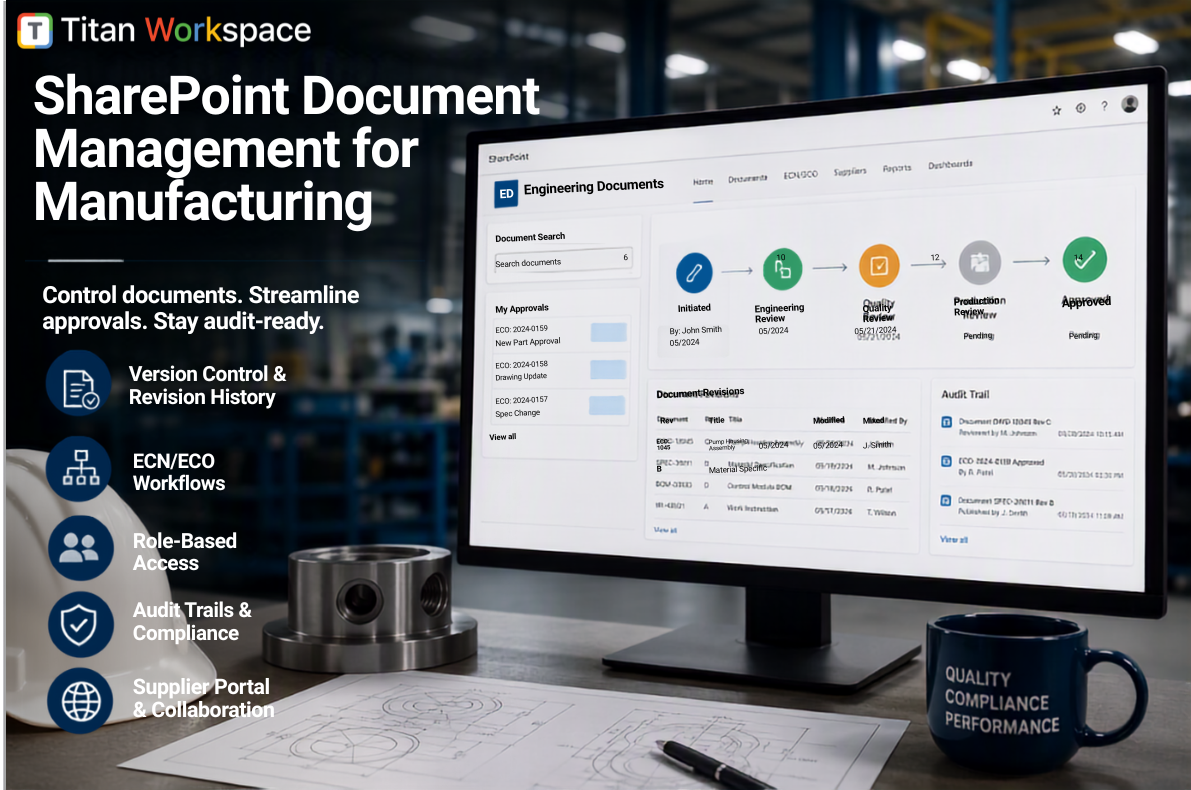
A typical mid-sized manufacturer manages tens of thousands of engineering drawings (CAD files, BOMs, work instructions), hundreds of standard operating procedures, ISO 9001 quality records, supplier qualification files, and compliance evidence for environmental and safety regulations.
The pain: Drawings exist in multiple revisions across engineers’ laptops, network drives, and the PLM system. Production uses outdated SOPs. ISO auditors take days to locate evidence. A single recall can require pulling thousands of documents in 48 hours.
Why it matters: Using the wrong drawing revision on the shop floor causes scrap, rework, customer escalations, and in regulated industries (medical devices, aerospace, automotive) — recalls and regulatory action.
How a SharePoint DMS solves it: Engineering drawings live in a controlled library with mandatory metadata (Part Number, Revision, Status, Approval Date). Approval workflows enforce that no drawing is “Released” without sign-off. Production reads from a filtered view showing only Released, current-revision drawings. Retention labels keep superseded revisions for the legally required period and dispose of them automatically. Auditors are given a guest portal with read-only access to the relevant evidence — no email chains, no shared USB drives.
Industry 2: Pharmaceutical and Life Sciences — GxP Documents and Regulatory Submissions
Pharmaceutical companies live and die by document control. Standard Operating Procedures, batch records, validation protocols, clinical study reports, regulatory submissions, deviation reports, and CAPA documentation must be controlled to GxP standards (GMP, GLP, GCP) and 21 CFR Part 11.
The pain: Every SOP requires a documented review and approval cycle, version control with tracked changes, electronic signatures with audit trails, and read-and-acknowledge tracking by every employee in scope. Failure means FDA observations, warning letters, or import alerts.
Why it matters: A single uncontrolled document used in a regulated process can invalidate a clinical trial or trigger a regulatory action that costs millions.
How a SharePoint DMS solves it: A dedicated SOP and Policy library uses content types with mandatory effective dates, review dates, and document owners. Power Automate or a specialized add-on drives the review-approve-publish-acknowledge cycle. Read-and-acknowledge dashboards show, for each SOP, who has read it and who has not. Audit-ready reports are generated on demand. Sensitivity labels and DLP prevent confidential clinical or regulatory documents from being shared externally without explicit authorization.
Industry 3: Financial Services and Real Estate — Contracts, KYC, and Investor Reporting
Banks, asset managers, real estate firms, and investment houses manage enormous volumes of contracts, loan files, KYC and AML documentation, investor communications, property documents, lease agreements, and audit evidence. Every document has a counterparty, a date, a regulatory implication, and often a retention requirement that runs decades.
The pain: Loan files scattered across email and shared drives, KYC documents unfindable when regulators ask, investor reports manually emailed to hundreds of recipients each quarter, contract renewals missed because nobody tracked the expiration date.
Why it matters: Regulators (SEC, FINRA, FCA, RBI, SEBI) impose escalating fines for record-keeping failures. A missed contract renewal can mean an unfavorable auto-renewal or service interruption. Lost investor trust is rarely recoverable.
How a SharePoint DMS solves it: Contract management uses metadata to track Counterparty, Effective Date, Expiration Date, Renewal Notice Period, and Owner. Automated alerts fire 90, 60, and 30 days before expiration. KYC files are stored in restricted vault libraries with role-based access and full audit trails. Investor reporting moves from email blasts to a secure guest portal where each investor sees only their own statements, with full read receipts and download logs. All retention is enforced through Microsoft Purview retention labels aligned to the firm’s record-retention schedule.
7. Top 10 Mistakes Companies Make with SharePoint as a Document Management System
These are the recurring failure patterns seen across hundreds of SharePoint deployments. Avoid these and you avoid most of the pain.
Mistake 1: Treating SharePoint Like a Network File Server
Lifting and shifting a 15-year-old file server structure into SharePoint, with twelve levels of nested folders, is the single most common mistake. SharePoint is not a network drive with a web interface. Migrate by content domain, redesign the structure, and use libraries plus metadata instead of deep folder trees.
Mistake 2: Skipping Information Architecture Planning
Organizations that build SharePoint sites reactively — one for every team that asks — end up with hundreds of orphan sites, no consistent navigation, and search results that surface the same document in five places. Spend the time on a content map and site taxonomy upfront.
Mistake 3: Granular Permissions Everywhere
Breaking inheritance at the folder level or item level “just in case” creates a permission nightmare that nobody can audit. Manage security at the site or library level using AD or Entra ID groups. If a document is so sensitive that it needs unique permissions, it probably belongs in a separate restricted site.
Mistake 4: Ignoring Metadata in Favor of Folders
Folders feel familiar; metadata feels foreign. Teams default to folders, end up with the same chaotic tree they had on the file server, and never get the search and reporting benefits SharePoint promises. Force metadata for at least the high-volume, high-value content types.
Mistake 5: No Naming Convention or Version Control Discipline
Files named “Final,” “Final v2,” “Final FINAL,” and “Final use this one” indicate a complete absence of versioning culture. Enable major and minor versions, train users to check in with comments, and stop the suffix-naming habit immediately.
Mistake 6: Over-Sharing Externally
Misconfigured external sharing — anyone-with-the-link sharing turned on by default — leaks confidential data. Audit external shares regularly, configure sensitivity labels to prevent external sharing of classified content, and educate users on the difference between “share to specific people” and “anyone with the link.”
Mistake 7: No Governance for Site and Team Sprawl
Every Microsoft Team creates a SharePoint site behind it. Without provisioning rules, naming standards, and lifecycle policies, you end up with thousands of inactive sites, abandoned Teams, and a search experience full of dead content. Use Microsoft 365 Groups expiration policies and custom provisioning to control sprawl.
Mistake 8: Forgetting Retention and Disposition
Companies often configure SharePoint to keep everything forever. This violates regulatory retention schedules in some industries and creates massive liability and discovery costs. Apply retention labels to records, enable disposition review for high-stakes content, and build a retention schedule that matches your legal and regulatory obligations.
Mistake 9: Not Training Users — or Training Them Once and Forgetting
A great SharePoint deployment with poor user training fails. Users default to email attachments, save copies to OneDrive, and the official library becomes a graveyard of half-current files. Run launch training, refresh training every six months, and build short job-aid videos for common tasks.
Mistake 10: Trying to Do Everything Out of the Box
SharePoint provides the foundation, but enterprise scenarios — complex approval workflows, policy acknowledgment tracking, secure external client portals, audit-ready compliance reporting, unified search across all file sources, advanced metadata-driven file management — typically require either substantial custom development or a purpose-built add-on. Organizations that try to build it all themselves often spend years and significant budget recreating capabilities they could have bought.
8. Frequently Asked Questions (Q&A)
Can SharePoint really be used as a full document management system?
Yes. SharePoint Online, combined with OneDrive, Microsoft Teams, and Microsoft Purview, provides every core DMS capability — version control, metadata, security, retention, audit trails, workflows, and search. The platform is used by tens of thousands of regulated organizations as their primary DMS. The caveat is that out-of-the-box SharePoint requires substantial configuration to behave like a true enterprise DMS, and most organizations augment it with workflow tools, governance add-ons, or specialized DMS overlays.
What is the difference between OneDrive and SharePoint for document management?
OneDrive is for personal files and works in progress — the cloud equivalent of “My Documents.” SharePoint is for shared, organizational documents that have an owner, a lifecycle, and a governance policy. As a rule, draft a document in OneDrive, but once it has a business owner and is meant to be found, used, or retained, it belongs in SharePoint.
Should I use folders or metadata in SharePoint?
Use metadata as your primary organizing approach, with shallow folders only when they reflect a meaningful business boundary (such as fiscal year). Metadata enables filtering, search, automation, and reporting — folders enable none of those. The historical reflex to use folders comes from network drives, not from how SharePoint is designed to work.
How many documents can a SharePoint library hold?
A single SharePoint library supports up to 30 million items. The practical limit is much lower — list view performance degrades past 5,000 items unless you use indexed columns and filtered views. The right approach is to design libraries for the content domain, use metadata and views for navigation, and never assume that a library will stay small forever.
What are SharePoint content types and why do they matter?
A content type is a reusable definition of a category of document an Invoice, a Policy, a Drawing, a Contract including its metadata, document template, retention rules, and workflows. Content types are critical because they let you treat documents based on what they are, not just where they live. The same Contract content type can appear in many libraries and behave consistently everywhere.
How do I set up retention and compliance in Microsoft 365?
Use Microsoft Purview to create retention labels and policies. Labels define how long content is kept and what happens at the end of the retention period delete, retain, or trigger a disposition review. Policies define where labels apply automatically. Combined with sensitivity labels for classification and DLP policies for data leakage prevention, this provides a defensible compliance posture for most regulated industries.
What is the best way to migrate from a network file server to SharePoint?
Migrate by content domain, not by drive letter. Inventory the content first, identify what is active versus archive, redesign the structure for SharePoint, apply metadata at the time of migration, and use a tool like SharePoint Migration Manager or a third-party migration tool. Plan two waves — bulk migration first, cleanup and tagging second.
How do I share documents securely with external users?
Use Microsoft 365 guest access with Entra ID B2B for ongoing partnerships. For one-off sharing, use specific-people links rather than anyone-with-the-link. For client-facing scenarios where you need a branded portal experience with controlled access, use a guest user portal solution that runs natively on M365.
What are the signs that my SharePoint DMS needs to be redesigned?
Search results that miss obvious documents, multiple versions of the same file in different sites, growing reliance on email attachments instead of links, users complaining they cannot find anything, audit findings, and frequent permission requests are all signals. If most users still default to OneDrive or email rather than the SharePoint library, the architecture is not working.
How do I track who has read or acknowledged a policy in SharePoint?
Out-of-the-box SharePoint does not include policy acknowledgment tracking. You can build it with Power Automate plus a custom list, or use a purpose-built policy and SOP management solution that records read receipts, attestations, and exception tracking with audit-ready reporting.
9. Why Titan Workspace Is the Smarter Way to Run a DMS on Microsoft 365
Setting up a document management system on SharePoint is achievable but doing it well requires deep expertise, custom development, ongoing IT support, and months of configuration. Titan Workspace is built specifically to deliver an enterprise-grade DMS on top of Microsoft 365 without the cost, complexity, or customization burden.
Titan Workspace runs natively inside your M365 tenant — your data never leaves your Microsoft cloud — and adds the practical capabilities most organizations need but struggle to build:
- Unified File Dashboard that brings together documents scattered across OneDrive, Teams, SharePoint libraries, email attachments, and externally shared files into a single, searchable view — eliminating the chaos of fragmented storage.
- File Explorer-inspired interface that gives users the familiar navigation experience of a desktop file system, on top of SharePoint’s compliance and security framework.
- Metadata-driven file management with simple configuration — no SharePoint consultants required to define content types, columns, and views.
- No-code workflow automation for document approvals, reviews, retention, distribution, and policy acknowledgments — built on SharePoint and Power Automate without requiring Power Apps licenses or custom code, cutting development costs by up to 70%.
- Built-in e-signatures at no extra cost, eliminating the need for DocuSign or Adobe Sign for most use cases and reducing e-signature spend by up to 50%.
- Secure external guest portals for customers, vendors, contractors, and investors — branded, controlled, and fully integrated with your M365 environment, replacing Dropbox, ShareFile, or Box.
- Secure file vaults for highly confidential content, with authentication-coded access, approval-based sharing, and full audit logs.
- Policy and SOP management with read-and-acknowledge tracking, compliance dashboards, and audit-ready evidence — purpose-built for regulated industries.
- Seamless migration from local file servers and legacy DMS tools to the M365 cloud, without disrupting users.
- Full M365 and GCC compliance — your data stays inside your tenant, governed by Microsoft’s enterprise-grade security and compliance framework.
Titan Workspace is trusted by organizations across manufacturing, real estate, pharmaceuticals, financial services, education, and government including a leading chemical manufacturer that organized 14 million documents in a single M365 tenant using Titan’s Unified Dashboard.
If you are serious about turning Microsoft 365 into a real document management system — without months of custom development, expensive SharePoint consultants, or IT bottlenecks — Titan Workspace is the fastest path from chaotic file sprawl to a clean, compliant, audit-ready DMS.
Ready to see it in action? Book a demo or visit titanworkspace.com to learn more.