Overcoming Challenges and Enhancing External User Adoption in Microsoft 365 and SharePoint

Microsoft 365 is a hidden gem-filled ocean. The external user collaboration is one of the heavily underutilized features. Without sacrificing security, M365 external users portal provides users with seamless integration capabilities. When it comes to using external user features to solve actual business problems, the possibilities are endless.

The majority of businesses adding external users to SharePoint or M365 tenant, limiting their access to file sharing and adding them to Teams channels and calls. I would compare this very basic use case for an external user to owning a Ferrari and restricting its speed to 10 miles per hour.

External user function can enhance your collaboration capabilities with vendors, sub-contractors, customers, temporary workers, frontline workers, students, community members and so on. Be it sharing files, managing projects, timesheets, tasks or information flow, the capabilities of external user feature extend beyond just file sharing.

Read More: Software Solutions for Sharing Files with External Users.

I would like to highlight some of the underlying reasons pertaining to such a low adoption for external user feature.

1. External User Governance

Adding a new external user to M365 tenant:
There is a dependency on your tenant administrator when you add a new external user as a guest. This dependency may result in a considerable delay in the process, particularly if there are a lot of external users and frequent requests.

Tracking external user acceptance:
This invitation process is concluded upon acceptance by the guest user. Tracking can be quite challenging when there are a lot of external users, particularly when the tenant administrator needs to access Azure Active Directory to verify the acceptance status of the users. This onboarding is further delayed by the absence of auto reminders.
Lack of ownership by business users:
Not empowering business users with a workflow to manage adding external users to SharePoint and creates another roadblock for the mass adoption of this feature. Active Directory users and external users must have a mechanism for user management without creating any dependency on M365 tenant administrator. In many cases M365 users would like to adding external users for a limited period and giving them limited permissions. Lack of this level of management discourages an enterprise to fully leverage external users features.

2. Guest User Interface

Useability and UX is the key to successful adoption for any feature. Guest users may not know anything about M365 and for them, their portal or user interface is all that matters. Customizing users’ interface for guest users would cost a fortune. This is one of the reasons why companies are yet to see real benefits for the external user feature.
Learn More: Simplifying External User Management


3. Identity Governance

Some of the challenges that I have highlighted above can be resolved by implementing Microsoft’s Entra ID Governance. It allows you to manage identity lifecycle, build workflows, put an expiry to external users etc. However, there is a significant cost impact as customers must additionally subscribe to Entra ID P2 (formerly Azure Active Directory P2) plans or upgrade their M365 to E5.

At Titan Workspace we have simplified external user management with an intuitive dashboard. Our solution does not require Entra ID P2 plan and works with all M365 including business essentials. Following key features of Titan Workspace facilitate guest user governance:

  • Workflow based approval for inviting new guest.
  • Dashboard for tracking status such as Invited, Accepted, Active and Terminated.
  • Automated reminders for invitation acceptance
  • Expiry date management for external user access
  • Template based guest user access
  • Defining guest user types

We have observed a significant increase in the adoption of Microsoft 365 external user features among our customers, contributing to a higher ROI on their existing M365 and SharePoint investments.

At Titan Workspace, we have simplified Microsoft SharePoint External Sharing with an intuitive dashboard. Our solution does not require an Entra ID P2 plan and works with all M365 plans, including Business Essentials. The following key features of Titan Workspace facilitate guest user governance:

  • Workflow-based approval for inviting new guests: Streamline the process of inviting external users with a structured approval workflow.
  • Dashboard for tracking status: Easily monitor the status of guest users, such as Invited, Accepted, Active, and Terminated.
  • Automated reminders for invitation acceptance: Ensure timely acceptance of invitations with automated reminder notifications.
  • Expiry date management for external user access: Manage and set expiry dates for external user access to enhance security.
  • Template-based guest user access: Simplify the process of granting access by using predefined templates.
  • Defining guest user types: Customize access and permissions based on different types of guest users.

We have observed a significant increase in the adoption of external user features among our customers, contributing to a higher ROI on their existing M365 and SharePoint investments.

FAQ’s

    1. Can you use SharePoint with External Users?

You can share OneDrive, SharePoint, or Lists files with people inside or outside your organization, allowing for secure collaboration.

    1. How do I allow external guest access to SharePoint?

In the SharePoint admin center, under Policies, enable external sharing for SharePoint. Select either “Anyone” or “New and existing guests” as your sharing setting. Save your changes

    1. Do guest users need a license to access SharePoint?

SharePoint Online does not strictly enforce license requirements. Users without licenses can still access content, and permissions are not directly tied to licenses. If you want to restrict access, you should use the SharePoint Online permission model.

The Ultimate Guide to Software Solutions for Sharing Files with External Users

In today’s interconnected world, businesses increasingly rely on external collaboration to drive productivity and innovation. Whether it’s working with clients, partners, or remote teams, the ability to share and manage files securely and efficiently is crucial. However, external collaboration needs often extend beyond simple file sharing, encompassing document workflows, e-signatures, and user management. This blog aims to provide a comprehensive comparison of popular file-sharing solutions, including Google Drive, Dropbox, OneDrive, Box, WeTransfer, Citrix ShareFile, and Titan Workspace.

By examining key factors such as ease of use, data storage, user management, and additional collaboration features, we hope to guide businesses in selecting the right solution for their specific needs while being mindful of each vendor’s potential drawbacks.

1. Ease of Use

  • Google Drive: Very user-friendly with a clean interface and seamless integration with other Google services. Perfect for Google Workspace users.
  • Dropbox: Intuitive and easy to navigate, suitable for both personal and professional use.
  • OneDrive: Integrated with Microsoft Office, making it easy for users familiar with Microsoft products.
  • Box: Slightly more complex due to its extensive features, but still user-friendly.
  • WeTransfer: Extremely simple to use, no account required for basic file transfers.
  • Citrix ShareFile: User-friendly with a focus on secure sharing and collaboration.
  • Titan Workspace: Offers a user-friendly and branded interface that integrates seamlessly with Microsoft 365, including SharePoint.

2. Customers’ Data Stored on Third-Party Cloud

  • Google Drive: Data is stored on Google’s cloud servers.
  • Dropbox: Data is stored on Dropbox’s cloud servers.
  • OneDrive: Data is stored on Microsoft’s cloud servers.
  • Box: Data is stored on Box’s cloud servers.
  • WeTransfer: Data is stored on WeTransfer’s cloud servers.
  • Citrix ShareFile: Data is stored on Citrix’s cloud servers.
  • Titan Workspace: Data is stored within the customer’s M365 Tenant, leveraging the security and compliance features of M365.

3. Ability to Extend Dedicated Portals to External Users

  • Google Drive: Supports external sharing but lacks dedicated client portals.
  • Dropbox: Allows external sharing but no dedicated client portals.
  • OneDrive: Supports external sharing but no dedicated client portals.
  • Box: Offers client portals for external users.
  • WeTransfer: No dedicated client portals, just simple file transfers.
  • Citrix ShareFile: Provides dedicated client portals for external users.
  • Titan Workspace: Provides branded and dedicated guest user portals for external users such as customers, partners, vendors, and more.

4. Ease of Managing External Users

  • Google Drive: Offers granular sharing settings and trust rules for managing external users.
  • Dropbox: Easy to manage external users with shared links and permissions.
  • OneDrive: Integrated with Microsoft 365, making it easy to manage external users. However, the process of adding and managing guest users is complex in M365 and creates an additional administrative burden on IT support staff.
  • Box: Advanced user management features.
  • WeTransfer: Minimal user management, focused on simple transfers.
  • Citrix ShareFile: Robust user management features.
  • Titan Workspace: Simplifies external user management with features like automated invitation processes, dashboards for tracking invitations, and easy permission management.

5. Built-in E-Signatures

  • Google Drive: Offers built-in e-signature capabilities.
  • Dropbox: Integrates with HelloSign for e-signatures.
  • OneDrive: No built-in e-signature but integrates with third-party tools and SharePoint E-Signatures.
  • Box: Integrates with DocuSign for e-signatures.
  • WeTransfer: No built-in e-signature capabilities.
  • Citrix ShareFile: Includes built-in e-signature capabilities.
  • Titan Workspace: Includes built-in e-signature capabilities, reducing the need for third-party services.

6. Easy to Build Workflows for Document Lifecycle

  • Google Drive: Integrates with tools like DocuSign, K2, and Nintex for workflow automation.
  • Dropbox: Basic workflow capabilities, integrates with third-party tools.
  • OneDrive: Integrates with Microsoft Power Automate for workflows.
  • Box: Advanced workflow automation features.
  • WeTransfer: No workflow automation capabilities.
  • Citrix ShareFile: Supports document workflow automation.
  • Titan Workspace: Supports no-code workflow automation for document management and other processes, making it easy to set up and manage workflows.

7. Ability to Share Content Other Than Files

  • Google Drive: Supports sharing of Google Docs, Sheets, Slides, and more.
  • Dropbox: Primarily focused on file sharing.
  • OneDrive: Supports sharing of Microsoft Office documents and other content.
  • Box: Supports sharing of various content types, including files and documents.
  • WeTransfer: Limited to file sharing.
  • Citrix ShareFile: Primarily focused on file sharing but supports document collaboration.
  • Titan Workspace: Allows sharing of documents, tasks, projects, news, knowledgebase, timesheets, and more, providing a comprehensive collaboration platform.

8. Ability to Manage Documents Created and Stored in Microsoft 365 and SharePoint

  • Google Drive: When you create a document in Microsoft 365 and then upload it to Google Drive, it creates a separate copy. This means any updates made in Microsoft 365 won’t automatically reflect in Google Drive, leading to version discrepancies. Users often need to manually upload updated versions, which can be cumbersome. If documents are created using Google Workspace, then this could be a perfect solution.
  • Dropbox: Dropbox creates a separate copy of the file when you upload it. While Dropbox has version control, it doesn’t sync changes made in Microsoft 365 automatically. Users need to manually manage versions, which can lead to confusion and outdated files.
  • OneDrive: OneDrive integrates well with Microsoft 365, therefore any documents created in M365 and shared through OneDrive automatically update their versions.
  • Box: Box offers robust version control, but when files are created in Microsoft 365 and uploaded to Box, they become separate entities. Users need to manually update files in Box, which can lead to version conflicts and additional administrative work.
  • WeTransfer: WeTransfer is designed for quick file transfers and doesn’t offer version control. When you transfer a file created in Microsoft 365, it becomes a standalone copy. Any updates need to be manually transferred again, which can be inefficient and error-prone.
  • Citrix ShareFile: ShareFile supports versioning, but files created in Microsoft 365 and uploaded to ShareFile are treated as separate copies. Users need to manually manage and update versions, which can lead to inconsistencies and additional effort.
  • Titan Workspace: Titan Workspace Guest User Portal is an extension of M365 and SharePoint. Any document created or managed within M365 gets version updates for external sharing too, eliminating the risk of managing two separate standalone files and ensuring users always get the latest version.

Conclusion

In conclusion, selecting the right external collaboration tool is crucial for ensuring seamless and efficient workflows in today’s dynamic business environment. Each solution—Google Drive, Dropbox, OneDrive, Box, WeTransfer, Citrix ShareFile, and Titan Workspace Guest User Portal—offers unique strengths and potential drawbacks.

By understanding the specific needs of your organization, you can make an informed decision. It’s essential to consider how well these tools integrate with your existing systems, particularly if you are a Microsoft 365 user, to avoid the pitfalls of managing multiple versions and maintaining consistency. Ultimately, the right choice will enhance your team’s productivity and collaboration, driving your business forward.

For more information about these solutions, please visit these links.

Disclaimer: We have tested all these solutions to the best of our knowledge and user access. Some features and comparison points might be missed or understated. Additionally, new versions may improve these products and features in the future. Trademarks of these vendors are owned by their respective owners. This report is provided free of charge and does not have any commercial benefits to TFW Labs, Inc.

Introduction of External sharing in Microsoft Office 365

One of the interesting features in Microsoft SharePoint is External Sharing. This features lets users of an organization share content with people outside the organization (such as partners, vendors, clients, or customers). External sharing feature can also help in sharing between licensed users on multiple Microsoft 365 subscriptions if an organization has more than one subscription. Planning for external sharing should be included as part of overall permissions planning for SharePoint in Microsoft 365.

External Sharing SettingsExternal Sharing settings can be applied both in Organization level and Site Level. If External Sharing needs to be enabled for any site, it has to be first enabled in Organization level after which it can be restricted in the other sites. If the site’s external sharing option is different from an organization-level sharing option, then the most restrictive value will take precedence.

Security and PrivacyIf there is any confidential information which should not be shared externally, then the external sharing for that site should be turned off and additional sites should be created for external sharing. This will help in managing the security risk by preventing external access to sensitive information.

Sharing PermissionsFollowing are the sharing permissions that can be enabled on the site:

Anyone: User with whom files are being shared don’t need to Sign-in.

New and Existing guest:Guests will require to Sign-in to access the files.

Existing guests only:Guests are needed to be part of the Organizational Active Directory.

Only people in your organization:External sharing won’t be allowed.

If the site is having external sharing as ‘Anyone’ then users are not required to Sign-in or to be added in the Organization Active Directory.

If the site is has external sharing as ‘New and Existing guest’ then files can be shared with new users or to the existing guest members in AD. If they are new users then after signing up, they will get added to the Organization Active Directory

If the site is having external sharing as ‘Existing guest only’ then the Azure AD admin will need to add the user first as a ‘Guest’, after which the external user will receive an invitation and once accepted, he will be part of the tenant.

If the site is has ‘Only people in your organization’ then external sharing can’t be done from that site.

What happens when Users shareWhen users share sites, recipients will be prompted to sign in with.

  • Microsoft accounts
  • A work or school account in Azure AD from another organization

When users share files and folders, recipients will also be prompted to sign in if they have:

  • A Microsoft account

These recipients will typically be added to your directory as guests, and then permissions and groups work the same for these guests as they do for internal users.

Because these guests do not have a license in your organization, they are limited to basic collaboration tasks:

  • They can use Office.com for viewing and editing documents. If your plan includes Office Professional Plus, they can’t install the desktop version of Office on their own computers unless you assign them a license.
  • They can perform tasks on a site based on the permission level that they’ve been given. For example, if you add a guest as a site member, they will have Edit permissions and they will be able to add, edit and delete lists; they will also be able to view, add, update and delete list items and files.
  • They will be able to see other types of content on sites, depending on the permissions they’ve been given. For example, they can navigate to different subsites within a shared site. They will also be able to do things like view site feeds.

If your authenticated guests need greater capability such as OneDrive storage or creating a Power Automate flow, you must assign them an appropriate license from Microsoft 365 admin center

Stopping sharing

You can stop sharing with guests by removing their permissions from the shared item, or by removing them as a guest in your directory.

You can stop sharing with people who have an “Anyone” link by going to the file or folder that you shared and deleting the link.

Steps to create external user in Azure AD

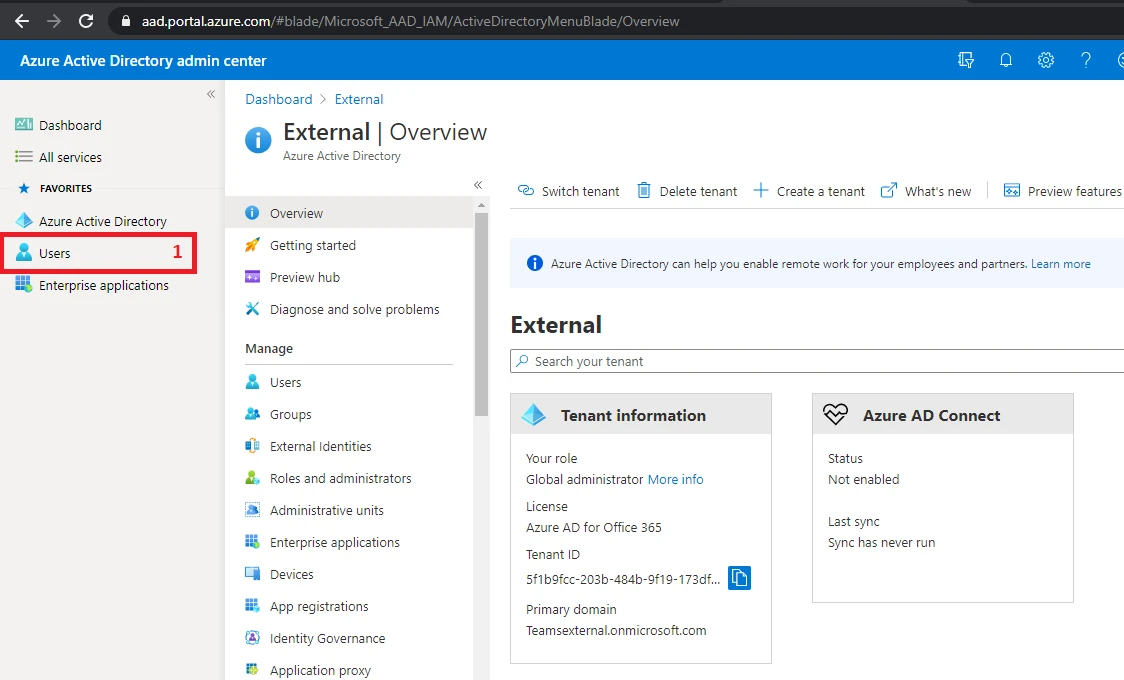
1. Login to Azure Portal and click on User (1)

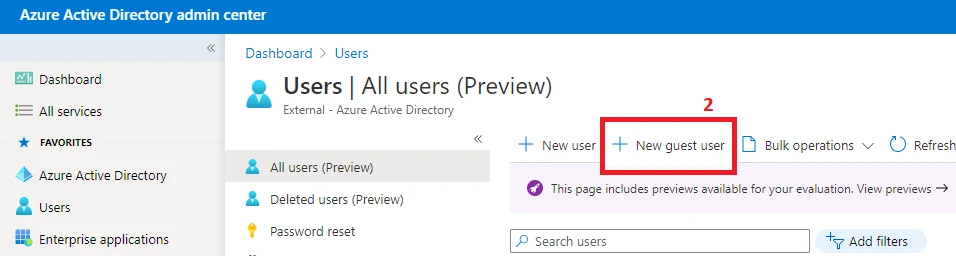
2. Click on ‘Add guest user’ (2)

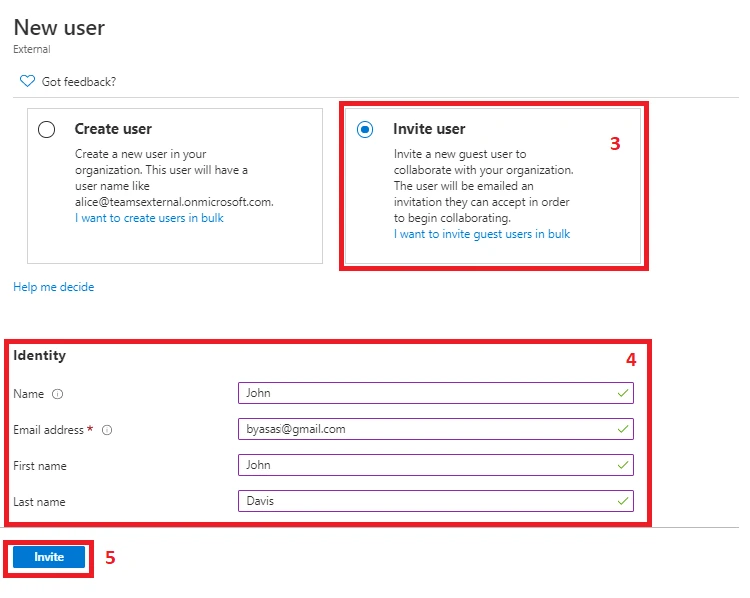
3. Select ‘Invite User’ (3), fill the details (4) and click ‘Invite’ (5)

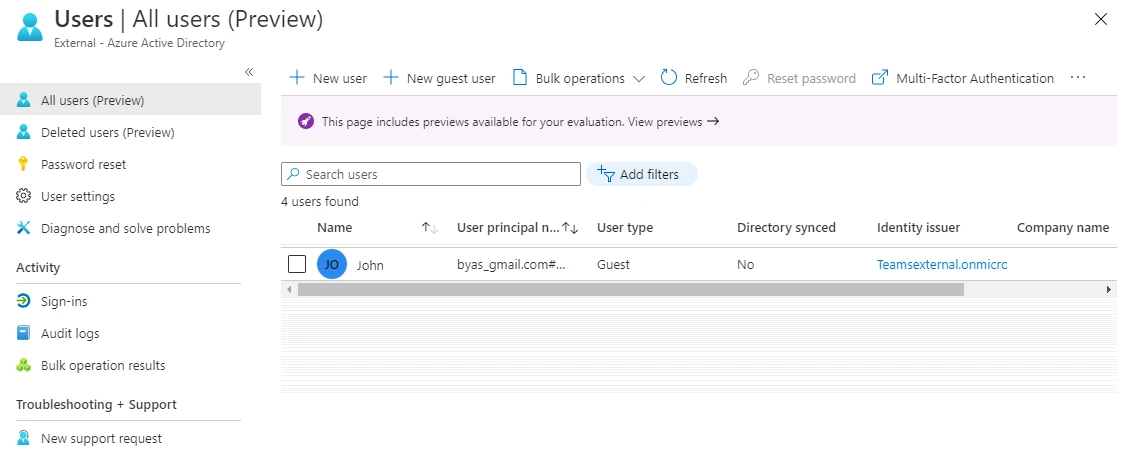
4. Once invited, user will get added in the users list, as shown belo

Simplifying External User Management with Titan Workspace

Your long-anticipated solution for collaboration with individuals and teams external to your organization has now been created and deployed. This summer 2021, Titan Workspace was able to streamline its Guest User Portal to benefit the companies who are ready to accomplish brilliantly open communications between their internal and external teams.

Leonardo Da Vinci once stated, “simplicity is the ultimate sophistication.” Such an insightful approach that so many efficient solutionists have discovered over thousands of years. Keep it simple. This methodology was used when designing a comprehensive but simple solution within MS Teams, built with SharePoint, for sophisticated coordination with guest users.

Let’s explore the newest Titan Workspace product enhancement released summer 2021 and fine-tuned over the last few months – the enhancement that simplifies the external user management process in Azure Active Directory (AAD).

The External User Management Tool – Keeps it Simple

Who can request an external user? Any internal business user.

Who will invite the external user? Tenant Administrator or Titan Workspace Administrator.

What will provide insight into the invitation status? The “External User Management” dashboard.

What makes this process so simple?Innovation behind this comprehensive tool allowing the business users to manage their external stakeholders. This has really helped our customers to leverage external users without creating any dependency on Tenant Administrator. The entire process is automated and business users need not be able to access Azure Active Directory (AAD).

The Titan Tool – Comprehensive Design

What does the External User Management Dashboard do? The dashboard allows the Titan Workspace Administrator to quickly track the external user invitation process and giving the visual progress of the full lifecycle from invitation to acceptance. With the available filter options, any of these stages can be reviewed at a glance for ease of management.

Is it possible to remind the external user that they have not yet accepted the invite? Yes. Very efficiently, the Titan Workspace Admin can filter by the not yet accepted invitees in order to send them a reminder (all at once or one at a time). This is an invaluable process that does not exist in O365 alone.

Who manages the external user permissions and access? Unlike with the O365 external user process, Titan has eliminated the need to have the SharePoint team select what the user can or cannot access. With Titan keeping the security and accessibility of your company tenant a top priority, the external user will only be able to access the necessary collaborative items that the internal teams want to share (including documents, project information, and task assignments).

How long can external user access the system? This is managed by business users. When the external user is added, the dates that the user will need access can be defined. If those dates need to be extended, this is also possible. This is not possible with O365 where the user needs to be manually added and removed by the SharePoint team.

Can a whole external group be added with Titan? Yes. In addition to one-to-one communication that Office365 allows, Titan Workspace can define a group or a company under which different stakeholders can be added to see unified content and documents. This group can also receive group communications or individual communications as needed.

The Titan Tool – Efficiently Effective

Why use Titan when we already have SharePoint? SharePoint is a great tool that is part of M365 platform. However, SharePoint is not as user friendly – especially when needing to manage external users. Without Titan Workspace, the company’s tenant administrator (often senior level) must spend their valuable time on tedious tasks involving inviting external users, verifying individual acceptance status manually, sending individual reminder invites manually, and then personally contacting the SharePoint team and providing the necessary details for them to set the external user’s permissions separately for each external user.

What if I have thousands of external users to add because we collaborate with many subcontractors, vendors, and customers? Using O365, you will need to add each of these users individually and then designate them as external users and set their permissions. Using Titan Workspace, all the users can be requested by business users and added in one or multiple large groups by the Titan Workspace Administrator.

What is the overall benefit or ROI? Titan Workspace has demonstrated the ability to increase collaboration and productivity by at least 30% within initial 3 months of going live. Titan Workspace brilliantly unites the functional SharePoint needs of a business with operational efficiency.

At TFW Labs, our mission is to simplify Office365, allowing customers instant access to our collaborative features without difficulty. This new functionality helps us achieve our mission.

Coming soon…we will look at the detailed process for interacting with external users with Titan Workspace using the uniquely built Titan Guest User Management Portal.