Benefits of Cloud Document Management System for Businesses

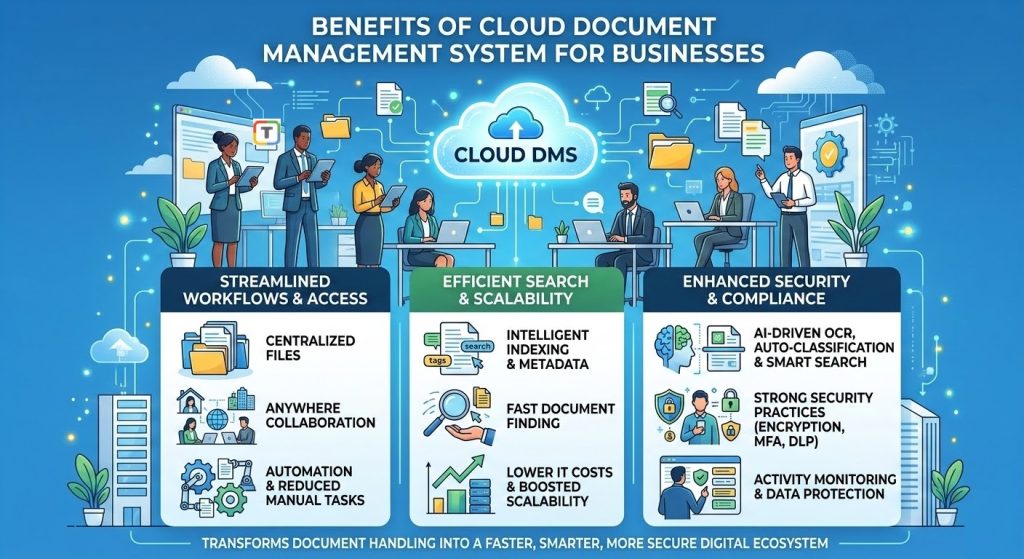
In a world where teams are distributed, regulatory pressures are rising, and data grows exponentially, a Cloud Document Management System (Cloud DMS) is no longer a “nice-to-have” it’s a competitive necessity. By centralizing content, automating workflows, and strengthening governance, Cloud Based Document Management Systems help organizations work faster, smarter, and more securely. This article explores the key benefits, the role of metadata and indexing in Cloud DMS, and best practices for Cloud Document Management Security, along with FAQs tailored to common long‑tail queries.

What Is Cloud Document Management?

Cloud Document Management (often called Document Management on Cloud) refers to storing, organizing, securing, and collaborating on documents via a cloud platform rather than on local servers. A modern Cloud Document Management System typically includes version control, access permissions, full‑text search, e‑signatures, workflow automation, retention policies, and integrations with core business tools (email, ERP, CRM, HRIS).

Core Business Benefits

1) Faster, Smarter Workflows

A Cloud Based Document Management System streamlines document-centric processes across departments—procurement approvals, onboarding, contract reviews, audits, and more. Automated routing, reminders, and role-based approvals reduce manual handoffs and bottlenecks. Staff can find the right version instantly, collaborate in real time, and maintain a clear audit trail.

Why it matters: Reduced cycle times, fewer errors, and transparent accountability.

2) Anywhere Access and Real-Time Collaboration

Remote and hybrid teams need secure access to documents wherever they are. With Document Management on Cloud, users can search, edit, comment, and co-author files from any device, minimizing duplication and email chaos. External stakeholders (vendors, clients) can be granted controlled access without creating security risks.

Why it matters: Higher productivity and better stakeholder experiences.

3) Lower Costs and Better Scalability

On-premises systems demand upfront hardware, maintenance, and upgrades. Cloud Document Management shifts costs to an operational model, with elastic storage and performance scaling as your content grows. You only pay for what you use and can roll out features incrementally across teams or regions.

Why it matters: Predictable costs and faster time to value.

4) Stronger Governance and Compliance

Cloud DMS platforms provide granular permissions, activity logs, retention schedules, and legal holds to help you meet industry-specific regulations. Automated policies reduce manual effort and decrease compliance risk.

Why it matters: Reduced exposure in audits and simplified regulatory reporting.

5) Enhanced Security

Cloud Document Management Security goes beyond passwords. Modern platforms offer encryption at rest and in transit, SSO/MFA, DLP (Data Loss Prevention), conditional access, malware and ransomware detection, and anomaly monitoring.

Why it matters: Protects sensitive data while enabling agility.

The Role of Metadata and Indexing in Cloud DMS

A powerful—often underestimated—advantage of Cloud DMS is the Role of Metadata and Indexing in Cloud DMS:

  • Metadata (e.g., document type, owner, department, effective date, customer ID) structures unstructured content, enabling precise filtering and policy-based automation.
  • Indexing turns files into searchable assets. Full-text indexing plus metadata fields delivers lightning-fast discovery, even across millions of documents.
  • Automation hooks use metadata to trigger actions: route to Legal if “Contract Type = NDA,” or apply “Finance retention = 7 years” to invoices.
  • Reporting & insights use metadata to surface bottlenecks, SLA breaches, and compliance gaps.

Bottom line: Metadata + indexing transform storage into a dynamic, findable, and policy-driven Cloud Document Management System.

Automation and Workflow Management in Cloud DMS helps teams operate at scale:

  • Configurable workflows: Drag‑and‑drop builders for approvals, reviews, and escalations.
  • Rule-based triggers: Auto-classify documents; assign tasks based on metadata.
  • Notifications & SLAs: Reminders for overdue actions; escalations to managers.
  • Audit trails: Every action is logged for compliance and quality control.

This combination eliminates manual rework and ensures consistency, turning your Cloud DMS into a true process engine.

Integration of AI in Cloud Document Management unlocks next-level efficiency:

  • Intelligent capture & OCR: AI extracts data (invoice totals, dates, POs) and tags files automatically.
  • Auto-classification & suggestions: The system predicts document types and proposes metadata.
  • Semantic search: Finds concepts and context, not just exact keywords.
  • Data quality & governance: AI flags duplicate or sensitive content and suggests remediation.
  • Insights: Analytics surface trends in document flow and risk exposure.

AI reduces manual indexing, improves accuracy, and speeds discovery—especially at enterprise scale.

Cloud Document Management Security Best Practices

To maximize resilience, adopt these Cloud Document Management Security Best Practices:

  1. Zero Trust access: Enforce least-privilege, SSO, and MFA.
  2. Encryption everywhere: TLS in transit, strong encryption at rest, and scoped key management.
  3. Granular permissions & sensitivity labels: Map access to roles and document classifications.
  4. DLP & eDiscovery: Prevent exfiltration and respond quickly to legal requests.
  5. Activity monitoring & alerts: Detect anomalies (mass downloads, odd hours, privilege misuse).
  6. Ransomware defences & immutability: Versioning, file restore, and immutable backups.
  7. Vendor due diligence: Review certifications (e.g., ISO 27001, SOC 2), data residency, and incident response SLAs.
  8. Lifecycle policies: Automate retention and defensible disposition to reduce data risk.
  9. Regular training: Make secure handling and classification part of team routines.

How Cloud Storage is Transforming Document Management

Cloud storage is more than a repository—it’s the foundation for How Cloud Storage is Transforming Document Management:

  • Unified content layer: One source of truth across teams and apps.
  • APIs & integrations: Connects with CRM/ERP/HR systems and e‑signature tools.
  • Real-time collaboration: Co-authoring, comments, and presence awareness.
  • Analytics & AI services: Native capabilities enrich documents with intelligence.
  • Elastic scale: Handle surges in projects, seasons, or M&A without re-architecting.

This synergy transforms documents from static files into living assets that drive outcomes.


FAQ’s

1) How Cloud-Based DMS Improves Workflow Efficiency?

A Cloud Based Document Management System automates routing, approvals, and reminders while ensuring everyone works on the latest version. Metadata-driven rules reduce manual tasks, and dashboards highlight bottlenecks. Result: faster cycle times, fewer errors, and better accountability.

2) How Cloud Storage is Transforming Document Management?

By centralizing content, enabling real-time collaboration, and integrating AI for search and classification, cloud storage underpins a modern Cloud Document Management System. It converts scattered files into a unified, searchable, and policy-driven knowledge base accessible from anywhere.

3) What Are the Benefits of Cloud Document Management System?

Top benefits include improved productivity, lower total cost of ownership, elastic scalability, stronger governance, robust security, and AI-enabled automation. This combination helps organizations move faster while reducing risk.

4) What Are Cloud Document Management Security Best Practices?

Implement Zero Trust access (SSO/MFA), encryption at rest and in transit, granular permissions, DLP, audit logging, versioning with ransomware recovery, vendor compliance checks, and automated retention policies. Train users regularly to maintain strong security hygiene.

5) What Are Data Security Challenges in Cloud Document Management?

Key challenges include misconfigurations (over-permissive sharing), shadow IT, data residency requirements, insider threats, and sophisticated phishing/ransomware. Mitigation depends on strong identity controls, continuous monitoring, governance policies, and secure vendor selection.

6) How Does Automation and Workflow Management in Cloud DMS Help?

Automation reduces manual effort, standardizes processes, and provides consistent audit trails. Workflows ensure tasks reach the right people, while reminders and SLAs prevent stagnation. You gain speed, consistency, and visibility.

7) What Is the Integration of AI in Cloud Document Management?

AI enhances capture (OCR and data extraction), auto-classifies files, enriches metadata, improves semantic search, and flags anomalies. It elevates accuracy and saves time, especially when dealing with large volumes of unstructured content.

8) What Is the Role of Metadata and Indexing in Cloud DMS?

Metadata and indexing make documents findable and governable. They drive precise search, enable policy-based automation (retention, access, routing), and power analytics. Without them, a DMS is just storage.

Explore Titan Workspace to simplify SharePoint management, improve governance, and automate your digital workspace operations with ease.

How to Add Metadata to SharePoint Files: A Complete Guide for Better Document Management

Managing documents efficiently in SharePoint can become challenging as your content grows. That’s where SharePoint Metadata plays a crucial role. Instead of relying solely on folders, metadata helps users classify, filter, and retrieve documents with ease. In this blog, we’ll explore How to Add Metadata to SharePoint Files, how to use Managed Metadata, and best practices for implementing a structured document management approach in SharePoint Online—especially with productivity tools like Titan Workspace.

What is Metadata in SharePoint?

Metadata is additional information assigned to your documents—such as department, project, client name, or document type. Unlike traditional folders, metadata enables dynamic filtering, sorting, and search, making content management more flexible and efficient. This approach is especially powerful when using the SharePoint Managed Metadata service.

Why Use Managed Metadata in SharePoint?

Managed Metadata is a centralized taxonomy system in SharePoint that allows organizations to maintain consistent tagging across sites and libraries. You can Create a Managed Metadata column and ensure users always select from predefined terms reducing errors and improving search precision.

With a SharePoint Managed Metadata column, businesses can maintain a structured hierarchy of terms. This is far more scalable compared to storing documents in multiple nested folders.

Here’s a simple process to enhance your document library with metadata:

How to Add Metadata to SharePoint Files

Step 1: Create Columns in Your Document Library

Navigate to your SharePoint library → Click Library Settings → Select Add a Column.
Here you can add Choice, Text, Date, or Managed Metadata fields.

Step 2: Create a Managed Metadata Column

To make use of a taxonomy, select Managed Metadata when creating a column. This allows you to connect the column with the Term Store, where enterprise-wide metadata is defined.

Step 3: Apply Metadata to Files

Upload files → Select the document → Use the Details panel to tag metadata fields such as project names or document categories.

Step 4: Use Metadata Views

Create custom views filtered by metadata. These dynamic views replace rigid folder structures and help users quickly locate content.

SharePoint Metadata Best Practices

  1. Use Managed Metadata over folders whenever possible.
  2. Avoid duplication centralize terms in the Term Store.
  3. Keep metadata simple make it easy for users to tag documents.
  4. Train users with SharePoint Metadata Examples Online to demonstrate usage.
  5. Review and update terms periodically.

Tools like Titan Workspace simplify SharePoint adoption by enabling metadata-driven document automation, user-friendly interfaces, and improved collaboration.

FAQ’s : About How to Add Metadata to SharePoint Files

1. How to tag documents in SharePoint?

Open the document library, select the file, and use the Details panel to assign metadata fields such as tags, categories, or Managed Metadata terms.

2. How to create managed metadata in SharePoint Online?

Go to SharePoint Admin Center → Content Services → Term Store and create term sets. Then, create a Managed Metadata column in your library to use these terms.

3. How to use Managed Metadata column in SharePoint Online?

Add a Managed Metadata column to a library, link it to a term set, and users can start tagging documents with predefined taxonomy terms.

4. How to add metadata in SharePoint document library?

Use Add Column from the library toolbar to create metadata fields such as text, choice, and Managed Metadata.

5. How to apply metadata to documents in SharePoint?

Edit metadata from the Details panel or use Quick Edit mode to tag multiple documents at once.

To know more about SharePoint Based Document Management System

SharePoint Embedded Cost Control Checklist (Practical & Buyer-Friendly)

For organizations evaluating Microsoft document platforms, the decision comes down to predictability vs flexibility.

  • SharePoint Online is a licensing-driven collaboration platform ideal for intranet, internal document management, and predictable IT budgets.
  • SharePoint Embedded is a pay-as-you-go content engine designed for modern applications, ISV platforms, and scalable document workloads.

CXOs should view SharePoint Online as an IT productivity investment, while SharePoint Embedded is an application infrastructure decision tied to architecture and usage patterns.

Bottom line:
Choose SharePoint Online for workforce collaboration.
Choose SharePoint Embedded when building document-centric apps at scale.

SharePoint Embedded Pricing (Official Microsoft PAYG Rates)

SharePoint Embedded uses a metered, consumption-based billing model via an Azure subscription. You pay for the resources your app consumes — storage used, API transactions executed, and outbound data transferred (egress).

Billing MeterUnitPricing (Typical)Notes
StoragePer GB per day$0.00667 / GB / dayStorage includes actual file data + versions + recycle bin content.
Graph API transactionsPer API operation$0.00050 / callBasic API calls for file operations.
Graph API transactions (Class B)Per operation$0.00075 / callSome operations fall into a higher class-B rate.
Egress (data downloaded)Per GB$0.05 / GBCharges for data that leaves the platform (downloads to user devices).

Disclaimer: These prices are representative public rates; they may vary slightly by region and contract. Always check the latest Azure pricing calculator or Microsoft docs for exact billing.

Example Monthly Cost Estimates (Hypothetical)

ScenarioStorageAPIEgressEstimated Monthly Cost
Low usage500 GB2M calls100 GB$1,150
Moderate usage2 TB10M calls500 GB$7,200
High usage5 TB25M calls1,000 GB$17,350

Note: These numbers are illustrative and will differ based on actual usage patterns, container lifecycle, version policies, and user behavior.

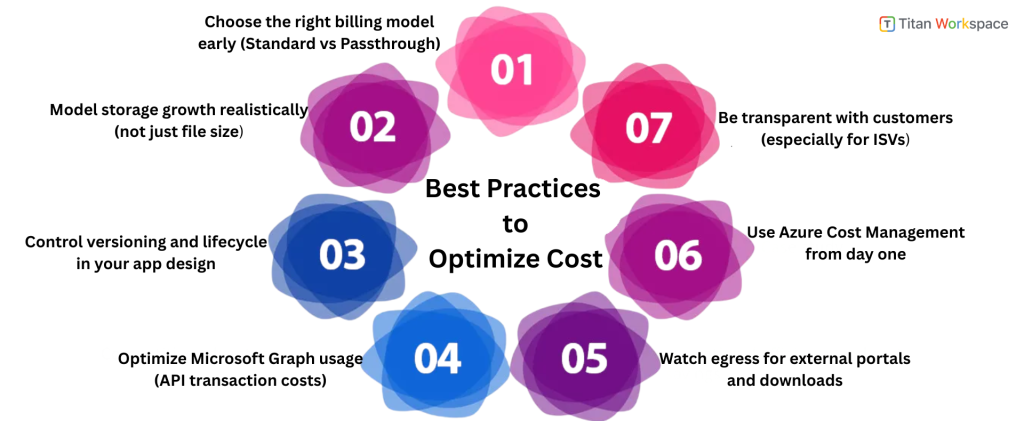
Best Practices to Optimize Cost

Before choosing SharePoint Embedded or before going live in production, use this checklist to keep pay-as-you-go (PAYG) costs predictable and under control.

1) Choose the right billing model early (Standard vs Passthrough)

  • Decide who should pay for usage: the app owner or the customer.
  • ISVs often prefer passthrough billing, so customers see and manage costs in their own Azure subscription.
  • Internal enterprise apps often prefer standard billing for centralized budgeting and governance.

Why this matters: changing billing models later can be operationally complex and impact customer contracts.

2) Model storage growth realistically (not just file size)

  • Account for File versions, Metadata, Deleted items and recycle bin retention
  • Don’t estimate storage only on “current files”; effective storage is usually 20–40% higher due to versions and lifecycle behavior.

Cost driver: long-lived content with frequent updates.

3) Control versioning and lifecycle in your app design

  • Set sensible limits on file versions where business appropriate.
  • Define lifecycle rules such as Archive old cases/projects and Export and delete closed records when compliance allows
  • Avoid keeping inactive content “forever” by default.

Best Practice: lifecycle design is cheaper than storage cleanup later.

4) Optimize Microsoft Graph usage (API transaction costs)

  • Reduce “chatty” UI patterns that trigger many small API calls.
  • Use batching where possible.
  • Cache stable metadata and permissions.
  • Avoid polling-based designs when event-based or user-driven updates work.

Rule of thumb: fewer, smarter API calls = lower PAYG spend.

5) Watch egress for external portals and downloads

  • High download frequency can quietly increase costs.
  • Use preview-first experiences instead of forced downloads.
  • Limit repeated downloads of large files where appropriate.
  • Educate users with UX nudges (“Preview before download”).

Common oversight: egress spikes in customer/vendor portals.

6) Use Azure Cost Management from day one

  • Set Monthly budgets and Alerts for unexpected spikes
  • Track usage by environment (dev, test, prod).
  • Review trends, not just monthly totals.

Key advantage of PAYG: Transparency if you actively monitor it.

7) Be transparent with customers (especially for ISVs)

If you’re an ISV using SharePoint Embedded:

  • Document what drives costs (storage, API usage, downloads).
  • Clarify whether billing is standard or passthrough.
  • Explain which user behaviours increase consumption (large files, versioning, heavy downloads).

Result: Fewer billing disputes, higher trust, smoother renewals.

Final takeaway for buyers and architects

  • SharePoint Online costs are largely predictable through licensing.
  • SharePoint Embedded costs are controllable, but only if you design intentionally around storage, API usage, and egress.
  • The best implementations treat PAYG as a design input, not a post-deployment surprise.

FAQs: SharePoint Embedded Pricing (Cost & Budget Focus)

Q1: How much does SharePoint Embedded cost per month?

SharePoint Embedded does not have a fixed monthly license. It uses a pay-as-you-go model billed through Azure. Monthly cost depends on three factors: storage consumed, API transactions executed by the app, and data downloads (egress). Higher usage directly increases cost.

Q2: Is SharePoint Embedded cheaper than SharePoint Online?

SharePoint Embedded is not inherently cheaper or more expensive — it is usage driven. SharePoint Online uses predictable per-user licensing, while SharePoint Embedded scales with consumption. It can be cost efficient for application workloads but requires architecture planning to avoid unnecessary API or storage growth.

Q3: What drives the biggest cost in SharePoint Embedded?

Storage is typically the largest cost driver, especially when versioning and deleted content accumulate. API transactions become expensive in high-activity apps, and data egress matters for download-heavy portals. Most production workloads see storage as the primary long-term cost factor.

Q4: Does file versioning increase SharePoint Embedded cost?

Yes. Version history counts toward billable storage. Each additional version consumes space and increases monthly cost. Applications that allow unlimited versioning can unintentionally grow storage bills. Smart lifecycle policies help control long-term spending.

Q5: How do API calls affect SharePoint Embedded pricing?

Every Microsoft Graph transaction initiated by your app contributes to cost. Apps with inefficient or chatty API design can generate millions of unnecessary calls. Batching operations and caching stable data significantly reduces billing impact.

Q6: Are there download or bandwidth charges in SharePoint Embedded?

Yes. Data egress is metered. When users download files, outbound data contributes to monthly cost. This is especially relevant for customer portals or vendor sharing platforms where large files are downloaded frequently.

Q7: Can SharePoint Embedded costs be predicted before deployment?

Yes. Organizations can model expected storage growth, API usage patterns, and download volume to estimate spend. Azure Cost Management tools allow budget alerts and usage tracking, making SharePoint Embedded costs controllable with proper planning.

Q8: How can companies reduce SharePoint Embedded costs?

Costs can be reduced by limiting version history, archiving inactive data, batching API calls, optimizing downloads, and monitoring Azure usage. Application architecture plays a major role in cost efficiency.

Q9: Who pays the SharePoint Embedded bill?

Billing depends on configuration. With standard billing, the app owner’s Azure subscription pays. With passthrough billing, the customer tenant pays directly. ISVs often use passthrough billing, so customers manage their own consumption.

Q10: Is SharePoint-Embedded cost suitable for enterprise workloads?

Yes. SharePoint Embedded is designed for scalable enterprise apps, but it requires cost governance. Enterprises benefit from usage transparency, budget controls, and the ability to scale infrastructure spend with actual demand.

To know more Titan Workspace

SharePoint Online (Microsoft 365) vs SharePoint Embedded: What’s the Difference?

If you’re researching SharePoint Online (in Microsoft 365) versus SharePoint Embedded, you’re likely trying to answer one practical question:

Do I need a full SharePoint collaboration/intranet platform, or do I need SharePoint’s file capabilities inside my own application experience?

They are related but built for different outcomes.

Quick definition

SharePoint Online (Microsoft 365)

SharePoint Online is the full, user-facing collaboration platform in Microsoft 365: sites, pages, lists, libraries, permissions, sharing, search, and integrations (Teams, OneDrive, Power Platform, etc.). It’s what most people mean when they say “SharePoint.”

SharePoint Embedded

SharePoint Embedded is an API-only way to use Microsoft 365’s file/document capabilities inside any app (your own UX), using Microsoft Graph. Content lives in the customer’s Microsoft 365 tenant but is stored in containers created and controlled by the application, not in normal SharePoint sites/libraries users browse in the SharePoint UI.

The #1 difference: UI-first vs API-first

SharePoint Online = UI-first platform

  • Users work directly in SharePoint sites and document libraries.
  • You get ready-made UI for navigation, pages, lists, libraries, sharing, and collaboration.
  • IT manages it through the SharePoint admin center and standard governance patterns.

SharePoint Embedded = API-first (headless) storage + document services

  • There’s no default SharePoint site UI for users to browse.
  • Your app provides the UI; SharePoint Embedded provides the file/document back end through Graph.
  • Storage is organized in a “File Storage Container” (often described as similar to an API-only document library).

If you want SharePoint to be the product experience, use SharePoint Online.

If you want SharePoint to be the content engine inside your product, use SharePoint Embedded.

Architecture: Sites & libraries vs Containers

SharePoint Online architecture

  • Sites (Team sites, Communication sites, Hub sites)
  • Document libraries (drives)
  • Lists, pages, web parts, navigation, etc.
  • Strong “information architecture” patterns for intranet + collaboration.

SharePoint Embedded architecture

  • Container Types and Containers (fileStorageContainer)
  • Access via Microsoft Graph APIs for files and operations
  • Built for ISVs and line-of-business (LOB) apps that need document capabilities without forcing users into SharePoint UI.

Licensing & cost model: per-user licensing vs pay-as-you-go (PAYG)

This is often the deciding factor.

SharePoint Online licensing (typical)

SharePoint Online is generally consumed as part of Microsoft 365 licensing (per user). Your storage is tied to tenant entitlements and licensing structure.

SharePoint Embedded licensing

SharePoint Embedded is explicitly consumption-based (pay-as-you-go). Microsoft describes it as PAYG and supports billing approaches such as Standard and Passthrough billing models depending on how the app owner wants to allocate costs.

What does this means in practice:

  • SharePoint Online: best when most users already have M365 licenses and will use SharePoint UI anyway.
  • SharePoint Embedded: best when you want to scale document storage and API usage with app consumption (especially in an ISV model).

Where the content “lives” and who controls it

SharePoint Online

  • Content lives in SharePoint sites/libraries that users can browse and manage (subject to permissions/governance).
  • Great when content is meant to be part of the organization’s everyday M365 workspace.

SharePoint Embedded

  • Content lives in the tenant, but inside containers those are provisioned by an app.
  • Users typically interact with files through your app’s UI and Graph-based integration.
  • This is attractive when you need a controlled, app-specific content domain (case files, project records, customer onboarding documents).

Search: SharePoint search vs Embedded container search

SharePoint Online search

SharePoint search is built into M365 experiences (SharePoint, Office, Microsoft Search), often “just works” for standard sites and libraries.

SharePoint Embedded search

Microsoft provides guidance for searching SharePoint Embedded content using the Microsoft Search API in Microsoft Graph, including scoping to container types.

Governance, compliance, and security

Both approaches leverage Microsoft 365 fundamentals, but governance looks different.

SharePoint Online governance strengths

  • Mature admin UX, policies, site lifecycle management, established best practices.
  • It is easier for IT teams to audit, manage, and train end users because it’s the standard platform.

SharePoint Embedded governance pattern

  • Governance is more “application-governed”:
    • Your app decides container structure, lifecycle, and user experience.
    • You still get Microsoft 365-grade storage and controls, but the operational model is closer to “platform services consumed by an app.”

Collaboration & end-user experience

SharePoint Online is built for collaboration by default

  • Sites + Teams integration
  • Coauthoring, sharing links, permissions UX, version history, etc.

SharePoint Embedded is built for “document experiences inside your app”

You can still enable collaboration features, but you own the experience design such as navigation, roles, workflows, and how users find and work with content. Microsoft positions it as enabling developers to harness M365 file/document storage, collaboration, compliance, and even AI experiences in “any app.”

Best-fit use cases

Choose SharePoint Online when you need:

  • Intranet portals (news, comms, departments)
  • Team collaboration sites
  • Knowledge management with pages + lists + libraries
  • Out-of-the-box M365 productivity adoption

Example: HR policy hub, company intranet, department collaboration spaces.

Choose SharePoint Embedded when you need:

  • A custom LOB app that needs documents (but not SharePoint UI)
  • ISV SaaS where each customer’s content stays in their own M365 tenant
  • Document-centric apps: case management, onboarding, claims, project records, vendor/customer document exchange inside your UX

Microsoft explicitly frames SharePoint Embedded for enterprises building LOB apps and ISVs building multi-tenant apps.

CategorySharePoint Online (Microsoft 365)SharePoint Embedded (PAYG Model)
Pricing modelPer-user licensing included in Microsoft 365 plansPay-as-you-go (consumption billing via Azure)
Cost predictabilityHigh — fixed licensing modelVariable — depends on actual usage
Who paysOrganization through Microsoft 365 subscriptionApp owner (Standard billing) or customer tenant (Passthrough billing)
Primary cost driverNumber of licensed usersStorage + API transactions + data egress
Storage billingIncluded tenant quota tied to licensesMetered by actual stored data (includes versions + recycle bin)
Versioning impactMinimal licensing impactHigher versions = higher storage cost
API usage impactNot billed separatelyEach app transaction contributes to cost
Download / egress costNo direct egress billing modelMetered outbound data increases spend
Best forPredictable intranet & collaboration workloadsScalable document apps & ISV platforms
Budget control styleLicense planningAzure cost monitoring + PAYG governance
Cost optimization methodLicense managementApp design optimization (storage, batching, lifecycle)
Financial riskLow — stable subscriptionMedium — depends on architecture & usage patterns
Ideal buyer mindsetIT operations / internal productivityProduct architects / ISVs / app builders

Decision matrix (simple)

Pick SharePoint Online if:

  • Users want SharePoint sites/pages as the main UX
  • You need intranet + collaboration + content management in one
  • IT wants standard admin/governance and fast rollout

Pick SharePoint Embedded if:

  • You are building an application and want SharePoint as the “content engine”
  • You need API-only control and a tailored UX
  • You prefer pay-as-you-go consumption economics for the content layer

Common misconceptions

“SharePoint Embedded is just SharePoint with a new name.”

No SharePoint Embedded is positioned as API-only, centered on containers and Graph-based access, not a replacement for the full SharePoint Online site experience.

“If we use Embedded, users can browse it from SharePoint sites.”

Not by default. Embedded content is designed to be accessed via your app and Graph-driven experiences (not standard site navigation).

Conclusion: the simplest way to decide

  • If you’re building a workplace portal/collaboration environment, SharePoint Online is the obvious choice.
  • If you’re building a document-centric application (internal LOB or ISV SaaS) and want Microsoft 365 file capabilities without forcing users into SharePoint UI, SharePoint Embedded is designed for that model.


FAQ’s of SharePoint Online (Microsoft 265) Vs SharePoint Embedded

1) Is SharePoint Embedded a replacement for SharePoint Online?

No. SharePoint Online is a full collaboration and intranet platform, while SharePoint Embedded is an API-only way to use Microsoft 365 file/document capabilities inside your own application UX.

2) How is SharePoint Embedded billed?

SharePoint Embedded is billed using a consumption-based pay-as-you-go model. Microsoft documents billing models such as Standard and Passthrough for different commercial approaches.

3) What is a SharePoint Embedded container?

SharePoint Embedded stores files in a Microsoft 365 tenant using a “File Storage Container” created by the application and accessed via Microsoft Graph APIs similar to an API-only document library concept.

4) Can I search SharePoint Embedded content like normal SharePoint sites?

You can search SharePoint Embedded content via the Microsoft Search API in Microsoft Graph, including scoping results by container types.

5) When should an ISV choose SharePoint Embedded instead of SharePoint Online?

When the ISV needs a custom app UX, wants content stored in each customer’s M365 tenant, and prefers an API-first, pay-as-you-go content layer rather than relying on users navigating SharePoint sites directly.

To know more Titan Workspace

How to Set Up Permissions in SharePoint: Concepts, Best Practices, and Security Framework for Modern Organizations 

Managing access to information is one of the most critical responsibilities for any organization using Microsoft 365. SharePoint, as the backbone of collaboration and a SharePoint Document Management System, provides a powerful but often misunderstood permission model. Many security issues, accidental data exposure, and compliance gaps arise not because SharePoint is insecure—but because permissions are not designed thoughtfully. 

This blog explains how SharePoint permissions work, how organizations should approach SharePoint permissions setup, and what SharePoint security best practices you should follow to build a scalable and secure environment. Instead of focusing only on clicks and screens, we’ll look at strategy, governance, and real-world design patterns for SharePoint user access management. 

Why SharePoint Permissions Matter More Than Ever 

Modern organizations store contracts, HR documents, policies, SOPs, and confidential data inside SharePoint. When permissions are poorly designed: 

  • Sensitive documents get overshared 
  • Employees gain access they don’t need 
  • Compliance audits fail 
  • IT teams struggle to troubleshoot access issues 

A well-planned SharePoint site permission configuration ensures: 

  • Data security and least-privilege access 
  • Easier onboarding and offboarding 
  • Cleaner collaboration across teams 
  • Long-term scalability without permission chaos

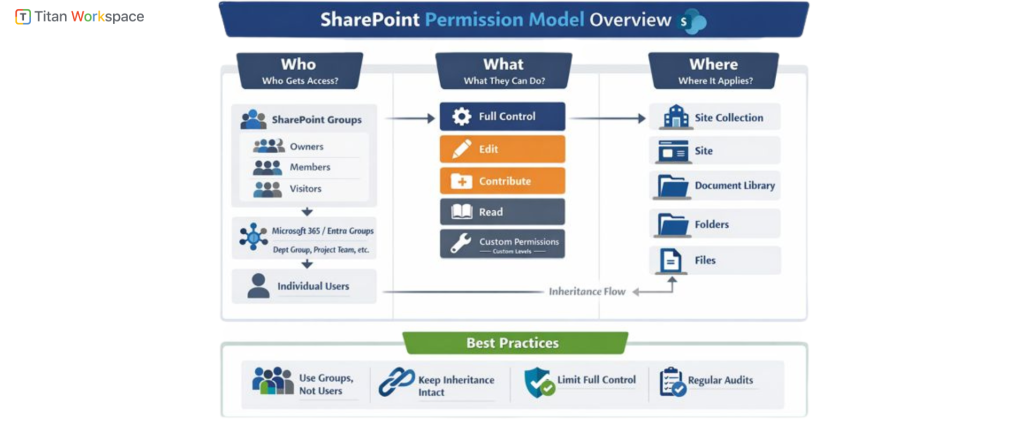
How SharePoint Permissions Work (Conceptual Overview) 

To understand How SharePoint Permissions work, you must first understand its hierarchical security model

1. Permission Levels (What users can do) 
SharePoint permissions are based on predefined or custom permission levels, such as: 

  • Read 
  • Contribute 
  • Edit 
  • Full Control 

Each permission level is a collection of granular rights (view, edit, delete, approve, etc.). Best practice is to reuse standard permission levels rather than create too many custom ones unless absolutely required. 

2. SharePoint Groups and Permissions (Who gets access) 

Instead of assigning permissions directly to users, SharePoint is designed around groups

  • Owners 
  • Members 
  • Visitors 
  • Custom role-based groups (e.g., HR Editors, Finance Reviewers) 

Using SharePoint groups and permissions correctly is the foundation of long-term manageability. 

Rule of thumb: 
Users → Microsoft 365 Groups / Entra groups → SharePoint Groups → Permission Levels 

3. Security Scope (Where permissions apply) 

Permissions in SharePoint apply at multiple levels: 

  • Site collection 
  • Site 
  • Document library 
  • Folder 
  • Individual file (discouraged except for exceptions) 

Each level inherits permissions from its parent unless inheritance is broken. 

SharePoint Permissions Setup: Strategic vs Tactical Approach 

Many organizations ask, “How to assign permissions in SharePoint Online?” 
The better question is: 
“What permission design supports our business processes?” 

  1. Tactical (Reactive) Setup 
  • Assigning users one-by-one 
  • Breaking inheritance frequently 
  • Granting Edit or Full Control “just to be safe” 
  • Managing permissions manually 

This approach does not scale. 

  1. Strategic (Recommended) Setup 

A strategic SharePoint permissions setup starts with: 

  • Role-based access design 
  • Clear ownership and accountability 
  • Minimal permission inheritance breaks 
  • Alignment with document classification 

SharePoint Security Best Practices for Organizations 

1. Design Permissions Around Roles, Not Individuals 

Avoid assigning permissions directly to users. Instead: 

  • Define business roles (HR Admin, Project Member, Auditor) 
  • Map roles to SharePoint groups 
  • Add users to groups only 

This is core to SharePoint user access management

2. Keep Permission Inheritance Intact Wherever Possible 

Breaking inheritance increases complexity and risk. 

Best practice: 

  • Break inheritance only at library level 
  • Avoid folder-level permissions unless absolutely required 
  • Avoid item-level permissions for regular users 

3. Use Sites to Enforce Security Boundaries 

If two departments should never see each other’s content: 

  • Use separate sites, not folders 
  • Let sites represent security boundaries 

This dramatically simplifies SharePoint site permission configuration

4. Limit Full Control Access 

Only site owners and IT administrators should have Full Control. 
Business users usually only need: 

  • Read 
  • Contribute 
  • Edit 

Excessive Full Control is one of the most common SharePoint security mistakes. 

5. Align Permissions with Document Lifecycle 

In a Document Management System in SharePoint, permissions should evolve: 

  • Draft → Editors only 
  • Review → Reviewers + Editors 
  • Published → Read-only for wider audience 
  • Archived → Restricted access 

This alignment improves both security and compliance. 

SharePoint Security Settings You Must Understand 

While permissions control who can accessSharePoint security settings define how content behaves

Key security settings include: 

  • External sharing controls 
  • Link expiration and access restrictions 
  • Sensitivity labels 
  • Conditional access via Entra ID 
  • Audit logs and activity tracking 

Permissions alone are not enough—security is layered. 

Common Permission Models That Work Well 

1. Department-Based Model 

  • Separate sites per department 
  • Department heads as Owners 
  • Employees as Members or Visitors 

Works well for HR, Finance, Legal. 

2. Project-Based Model 

  • One site per project 
  • Time-bound access 
  • External users controlled at site level 

Ideal for consulting, engineering, and cross-functional teams. 

3. Policy & SOP Model 

  • Central read-only site for employees 
  • Restricted edit rights 
  • Approval-based publishing 

Excellent for governance and compliance use cases. 

How to Manage SharePoint Site Permissions Long-Term 

Setting up permissions is only half the job. How to Manage SharePoint Site Permissions over time is where most organizations struggle. 

  1. Ongoing Best Practices: 
  • Quarterly permission reviews 
  • Automated access removal for leavers 
  • Ownership validation for inactive sites 
  • Monitoring external user access 

Without governance, permissions decay quickly. 

  1. Customizing Permissions for a SharePoint Environment 

Sometimes, standard permission levels are not enough. 

You may need to Customize permissions for a SharePoint environment when: 

  • Users can upload but not delete 
  • Reviewers can comment but not edit 
  • Contributors need restricted download rights 

Customization should be minimal, documented, and consistently reused. 

  1. SharePoint Permissions and Compliance 

For regulated industries, permissions support: 

  • ISO standards 
  • HIPAA 
  • GDPR 
  • SOC 2 
  • Internal audits 

A well-structured SharePoint Document Management System with proper permissions ensures: 

  • Clear accountability 
  • Controlled access 
  • Audit readiness 

When Organizations Need SharePoint Permissions Consulting 

Many organizations reach a point where internal teams struggle with: 

  • Inherited permission sprawl 
  • Over-shared content 
  • Broken security models 
  • Audit failures 

SharePoint permissions consulting helps by: 

  • Auditing current access 
  • Redesigning permission architecture 
  • Implementing governance models 
  • Training admins and site owners 

Consulting is often faster and safer than attempting cleanup after years of misconfiguration. 

SharePoint Permissions Setup vs Traditional File Servers 

Unlike file servers: 

  • SharePoint permissions are metadata-driven 
  • Collaboration is user-centric 
  • Security integrates with identity and compliance tools 

Organizations that treat SharePoint like a network drive often fail to realize its full security potential. 

Final Thoughts: Permissions Are a Design Decision, Not a Click 

Understanding How to Set Up Permissions in SharePoint is not about learning where the button is—it’s about designing access, accountability, and governance

When done right: 

  • Users get access they need—nothing more 
  • IT teams regain control 
  • Compliance becomes easier 
  • SharePoint becomes a true enterprise-grade Document Management System 

If your SharePoint permissions feel complex, inconsistent, or risky, it’s usually a sign that architecture—not technology—needs attention

Eliminating SharePoint Permission Chaos with Titan Workspace 

Managing SharePoint permissions doesn’t have to be complex. Titan Workspace eliminates permission chaos by enforcing role-based access, secure inheritance, and governance-aligned design—helping organizations manage SharePoint site permissions, strengthen SharePoint security best practices, and build a scalable Document Management System in SharePoint with confidence. 

FAQ’s About How to Set Up Permissions in SharePoint

FAQ 1: How do SharePoint permissions work in a modern organization? 

Answer: SharePoint permissions work through a layered security model that combines users, groups, permission levels, and inheritance. Access is typically granted to SharePoint groups (not individuals), which are assigned permission levels like Read, Contribute, or Edit. These permissions apply at different scopes such as sites, libraries, folders, or files, with inheritance flowing downward unless explicitly broken. This model supports scalable SharePoint user access management and aligns well with enterprise security needs. 

FAQ 2: What is the best way to set up SharePoint permissions for a company? 

Answer: The best way to set up SharePoint permissions is to design access around business roles instead of individual users. Organizations should use Microsoft 365 or Entra ID groups mapped to SharePoint groups, keep permission inheritance intact wherever possible, and use separate sites as security boundaries. This strategic SharePoint permissions setup improves security, reduces administrative overhead, and supports long-term governance. 

FAQ 3: Should permissions be assigned at site, library, folder, or file level in SharePoint? 

Answer: Permissions should ideally be assigned at the site or document library level. Folder- and file-level permissions should be used only in rare exception cases because they increase complexity and risk. Keeping permissions higher in the hierarchy simplifies SharePoint site permission configuration, improves performance, and makes audits and troubleshooting much easier. 

FAQ 4: How do SharePoint groups and permissions help with security and governance? 

Answer: SharePoint groups and permissions help enforce consistent access control by separating “who gets access” from “what they can do.” Groups allow organizations to manage access centrally, reduce errors from direct user assignments, and support automation for onboarding and offboarding. This approach is a core SharePoint security best practice and essential for compliant document management. 

FAQ 5: How can SharePoint permissions support a Document Management System? 

Answer: In a SharePoint Document Management System, permissions control access throughout the document lifecycle—from draft and review to approval and publishing. By aligning permission levels with document states and business roles, organizations can prevent unauthorized edits, protect sensitive information, and maintain compliance. Proper permissions are foundational to using SharePoint as a secure and scalable Document Management System. 

FAQ 6: When should an organization consider SharePoint permissions consulting? 

Answer: Organizations should consider SharePoint permissions consulting when they face permission sprawl, accidental oversharing, audit failures, or complex inheritance issues. Consulting helps assess existing SharePoint security settings, redesign permission architecture, implement governance models, and train site owners. This is especially valuable for growing organizations or those operating in regulated industries. 

Copilot vs Purview: Why Compliance Tools Don’t Equal SharePoint Governance

Introduction – The New Buyer Confusion

With the rapid enterprise rollout of Microsoft Copilot, including Security Copilot in Microsoft Purview Overview, CIOs and IT administrators are asking urgent questions about data security in SharePoint.

At the same time, Microsoft has heavily promoted Microsoft Purview as the central platform for information protection and governance. The key Microsoft Purview benefits include unified visibility, stronger security, and simplified compliance across enterprise data. Purview for enterprise data compliance helps organizations discover, classify, and protect sensitive information while meeting regulatory requirements. As a trusted Microsoft Purview data governance solution, Titan Workspace guides businesses on how to use Microsoft Purview Data Map effectively and implement proven Microsoft Purview data governance best practices for long-term control and scalability.

This has created a major misconception in the market:

“If we have sensitivity labels enabled through Purview, our SharePoint is automatically safe for Copilot.”

Unfortunately — that is not true.

Copilot introduces a completely new risk model. And while Purview is a powerful compliance system, it was never intended to enforce day-to-day governance discipline inside SharePoint.

This blog explains the critical difference.

Copilot’s Operating Model vs Purview’s Operating Model

What Microsoft Copilot Actually Does

Copilot for Microsoft 365 works as an intelligent layer across:

  • SharePoint Online
  • Microsoft Teams
  • Exchange emails
  • OneDrive files
  • Viva Engage and other services

When a user asks Copilot a question, it instantly aggregates information from any content that user is permitted to access.

It does NOT:

  • Understand whether a document is draft or final
  • Distinguish between old and new versions
  • Recognize business intent
  • Apply governance judgment

It simply surfaces what is available.

That is both its strength and its risk.

What Microsoft Purview Was Designed For

Purview’s mission is to provide:

  • Data Loss Prevention (DLP)
  • Information Protection
  • eDiscovery
  • Regulatory compliance
  • Encryption and labeling
  • Audit and reporting

Purview operates primarily at the file protection level.

It helps organizations comply with standards like:

  • ISO 9001 / ISO 27001
  • HIPAA
  • GDPR
  • SOC audits

But its scope is:

Protecting documents AFTER they have been created and shared.

The Fundamental Difference

QuestionCopilot FocusPurview Focus
What can be accessed?
What should be accessed?
Is this a draft?
Is this outdated?
Who acknowledged this policy?
Can structure be enforced?

This table highlights the core issue:

Neither Copilot nor Purview enforces SharePoint governance behavior.

Understanding the Limits of Sensitivity Labels

Where Labels Add Real Value

Let us be fair to Purview. Sensitivity labels are extremely useful.

They can:

  • Encrypt a confidential contract
  • Prevent external forwarding
  • Add watermarks
  • Restrict downloads
  • Classify documents as Public / Internal / Confidential

For human collaboration, this is excellent protection.

But Labels Do Not Control AI Visibility

Here is the problem:

If a user has permission to read a file that is labeled “Confidential – Internal,” Copilot can still summarize it for that user.

The label remains intact.

The AI exposure still happens.

Labels do not override permissions.

And Copilot honors permissions, not labels.

Example – Legal Draft Exposure

A site owner stores a document in SharePoint called:

HR-Layoff-Plan-2025-DRAFT.docx

It is labeled as Highly Confidential.

But:

  • 50 managers have read access to the folder

A manager asks Copilot:
What is the workforce plan for next quarter?

Copilot summarizes the draft plan in seconds.

Result:

  • Panic in the organization
  • Trust breakdown
  • No actual breach
  • But massive internal impact

Purview did its job.

Governance failed its job.

Example – Pricing Spreadsheet Risk

A sales site contains:

Adapt-Titan-US-Pricing-Exceptions-DRAFT.xlsx

Label: Confidential.

Readable by:

  • Pre-sales team
  • Delivery managers

Someone asks Copilot:

“Give me a summary of our discounting strategy.”

Copilot produces insights using that draft pricing file.

The AI answer becomes “truth” — even though business never approved it.

Again:

The tool worked.

The structure failed.

Lifecycle Confusion — Copilot Cannot Tell Time

Old Documents Create Conflicting Answers

Purview allows you to apply retention policies, but it does not prevent libraries from containing multiple generations of documents.

Imagine a SharePoint site with:

  • “Supplier Policy – 2018”
  • “Supplier Policy – 2022”
  • “Supplier Policy – 2025 FINAL”

All internal users can read all versions.

A user asks Copilot:

“What is the current supplier policy?”

Copilot merges text from all three.

You get:

  • Mixed guidance
  • Conflicting procedures
  • Poor operational decisions

No label can fix that.

Only real governance can.

The Oversharing Problem — Structure vs Access

SharePoint oversharing has been a long-standing challenge.

Flat libraries and broad access groups create minimal friction for humans, but AI thrives on low friction.

Typical overshared patterns include:

  • Company-wide IT sites
  • Mixed project repositories
  • Old employee personal folders
  • Migration leftovers from network drives

Copilot surfaces all of them.

That leads to:

  • Data leaks
  • Wrong answers
  • Exposure of obsolete files
  • Compliance concerns

Purview can highlight some of this in reports — but cannot prevent it operationally.

What True SharePoint Governance Must Include

To make SharePoint safe and effective with Copilot in 2025+, your platform must deliver the following capabilities:

1. Metadata Discipline

AI-ready SharePoint requires:

  • Mandatory metadata
  • Business context
  • Document types
  • Controlled libraries

Metadata is the language AI understands best.

2. Draft Isolation

Governance must ensure:

  • Draft libraries are restricted
  • Unapproved content is invisible
  • Copilot cannot read what business has not sanctioned

3. Folder-Level Access Control

Instead of site-wide rules:

  • Department-specific folders
  • External user segregation
  • Need-to-know access

4. Approval Enforcement

  • Document approvals
  • Policy management
  • Acknowledgement tracking
  • Time-stamped evidence

5. Lifecycle Automation

  • Automatic archival
  • Retention enforcement
  • Separation of old vs current

Titan Workspace – The Native Governance Layer Microsoft 365 Needs

Here is where Titan Workspace adds its unique value.

Most enterprises love SharePoint but hate managing it. They want Copilot — but not at the cost of security.

Titan Workspace provides:

  • Governance enforcement
  • Metadata-driven architecture
  • Draft vs approved visibility control
  • Approval workflows
  • Audit-ready SOP evidence
  • Guest user access control
  • Lifecycle management

All without leaving Microsoft 365.

Example – Titan + Purview Working Together

  • Purview labels: encrypts sensitive files
  • Titan governance: controls who sees drafts
  • Titan lifecycle: removes obsolete AI scope
  • Titan approvals: generate auditor evidence

This combination makes SharePoint:

  • Secure for humans
  • Secure for AI
  • Reliable for search
  • Ready for audits

Why Buyers Prefer Native to M365 Governance

Replacing SharePoint with external platforms like Dropbox or cloud DMS tools introduces:

  • Duplicate repositories
  • Extra identity providers
  • Integration complexity
  • Data residency issues

Titan Workspace avoids these disadvantages because:

  • It is deployed directly as SharePoint + Power Automate extension
  • Data never leaves the tenant
  • Microsoft Entra remains the identity provider
  • Copilot inherits clean governed access

Final Conclusion

Microsoft Copilot requires a new way of thinking about SharePoint. And while Microsoft Purview is an excellent compliance suite, it is NOT a governance enforcement engine.

So the answer to the market confusion is simple:

Purview ≠ SharePoint Governance

Copilot ≠ Governance

Permissions ≠ Governance

AI safety demands structure, lifecycle, and workflow discipline.

Titan Workspace exists exactly to enforce that discipline natively inside Microsoft 365.

Enterprises that understand this difference will unlock Copilot confidently.

Call to Action

If you are enabling Copilot:

  • Run a SharePoint readiness audit
  • Isolate drafts
  • Enforce metadata
  • Introduce lifecycle governance

Titan Workspace can make your SharePoint AI-ready in weeks instead of months. Looking for a simpler way to Secure Confidential Files in Microsoft 365? Titan Workspace’s Secure Vault offers enterprise-grade protection for sensitive folders and documents even from tenant admins without the need for Microsoft E5 licenses, Purview, or complex configurations.

Why SharePoint Permissions Break in the Copilot Era

Permissions Were Never Built for AI Consumption

For more than a decade, Microsoft SharePoint permissions have been the foundation of collaboration and security in Microsoft 365. Site owners grant access; users browse files, and security relies heavily on human judgment and intent. That model works when humans control discovery. It breaks the moment Microsoft Copilot SharePoint Security Risks enter the environment.

Copilot does not browse content like humans. It does not follow folder paths, hesitate before opening files, or rely on personal judgment. Instead, Copilot reads everything a user can access, across SharePoint, Teams, and OneDrive, and synthesizes it instantly. Any mistake in SharePoint permissions is no longer buried or harmless—it is amplified by AI. What once caused inconvenience now creates immediate data exposure risk.

Traditional SharePoint permissions in the Copilot era were designed around sites, libraries, folders, and files. The underlying assumptions were simple: users know where to go, users only open what they need, and users understand context. This approach worked when search was manual, discovery was slow, and knowledge stayed siloed within teams. Copilot eliminates all three assumptions at once.

Why Microsoft Copilot Changes SharePoint Governance Completely

Copilot introduces machine-speed discovery. It scans documents across Microsoft 365, correlates unrelated information, and generates summaries without explicit user intent. Copilot does not ask whether a document is draft, outdated, or sensitive. It does not evaluate business relevance or approval status.

Copilot asks only one question: Does the user have access?

If the answer is yes, the content becomes a fair game for summarization, synthesis, and AI-driven insights. This is why SharePoint permissions alone are insufficient in the Copilot era. They answer a binary question—read or not read—while AI requires continuous context, validation, and governance.

Common SharePoint Permission Mistakes Copilot Actively Exploits

One of the most widespread risks comes from the “Everyone Except External Users” group. Originally created for convenience, faster onboarding, and reduced IT workload, this group exists in nearly every Microsoft 365 tenant. With Copilot enabled, every readable document becomes AI-visible, including sensitive drafts, internal discussions, and partially approved files.

Another common issue is broken permission inheritance at the site level. IT teams often break into inheritance once to solve a short-term problem and then forget about it. Over time, permissions sprawl, ownership is lost, and no one remembers why access exists. Copilot, however, remembers everything and uses it all.

Nested Microsoft 365 Groups creates even deeper risk. Groups inside groups form invisible access paths, eliminate clear audit trails, and expose data through AI without accountability. Add to this legacy SharePoint sites with no active owner—old project portals, abandoned team sites, and historical document libraries—and you have a perfect storm. Humans forget these sites exist. Copilot never does.

Consider a real-world scenario. A finance director asks Copilot to summarize vendor risks and cost overruns for Q4. Copilot pulls information from a 2019 legal dispute document, a draft HR restructuring plan, and a confidential pricing worksheet. No hacking occurred. No external sharing occurred. Permissions were technically “correct.” The failure was governance, not security.

Why Permission Audits Fail in an AI-Driven Microsoft 365 Environment

Many IT teams respond to Copilot risk by doubling down on quarterly permission audits and access cleanup drives. While these approaches worked in a pre-AI world, they are fundamentally ineffective once Copilot is enabled. Permissions lack business context, audits capture only a point in time, and Copilot operates continuously.

You cannot manually audit your way out of an AI problem.

The deeper issue is that permissions are binary, but AI is contextual. Permissions can tell you whether a user can read a file. Copilot needs to know whether the content is approved, current, relevant, and safe to summarize. Traditional Microsoft Copilot SharePoint Security models were never designed to answer those questions.

What Actually Works: Copilot-Safe SharePoint Governance

The solution is not to replace SharePoint permissions, but to govern how they behave. Copilot-safe SharePoint environments introduce governance layers above permissions that provide structure, context, and lifecycle control.

Metadata-driven access is foundational. Documents should be classified by type, status, sensitivity, and business function. AI systems interpret structured metadata far more effectively than flat folders, allowing Copilot to respect business intent rather than raw access.

Equally important is separating draft content from approved content. Draft documents belong in restricted libraries with limited visibility. Approved content should follow controlled publishing workflows and be AI-visible by design. This ensures Copilot surfaces trusted, validated information instead of unfinished or misleading material.

Folder-level governance further reduces AI exposure by avoiding broad, site-wide access. Fine-grained folder rules, role-based visibility, and scoped permissions significantly reduce the AI blast radius. When Copilot operates within governed boundaries, accidental oversharing drops dramatically.

Automated lifecycle management completes the model. Old and obsolete documents should be archived, retired, or explicitly removed from AI scope. Without lifecycle controls, Copilot can easily transform outdated information into authoritative-sounding misinformation.

How Titan Workspace Enables Secure Copilot Adoption

This is where Titan Workspace fits naturally into the Microsoft 365 ecosystem. Titan Workspace does not replace SharePoint permissions. It governs how those permissions function in real business scenarios.

Titan adds structural enforcement, metadata rules, approval workflows, and lifecycle automation—entirely inside Microsoft 365. Copilot continues to work, but only with content that is approved, governed, and contextually correct.

Why CIOs and CISOs Must Act Now

With Copilot enabled, oversharing becomes instant exposure, legacy data becomes misinformation, and drafts become liabilities. Permissions alone cannot manage AI risk at the speed Copilot operates. Governance can.

SharePoint permissions did not fail. They were never designed for AI consumption. Once Copilot is enabled, permissions must be supported by governance, structure matters more than raw access, and lifecycle controls become essential to reducing AI risk.

Organizations that address this now will unlock Copilot safely and confidently.

SharePoint Indexing Explained: Why Search Fails And How to Fix It

If you’re searching for SharePoint Indexing, you’re probably facing one of these problems:

  • SharePoint search doesn’t find files you know exist
  • Users say “SharePoint search is broken”
  • Audits or inspections take too long because documents aren’t discoverable
  • Large document libraries are slow or unusable

The issue is almost never SharePoint itself.

It’s how files are indexed, structured, and published.

This guide explains how SharePoint indexing actually works, common mistakes, and proven fixes—based on real-world usage in Manufacturing, Aerospace, Police, and Fire Departments.

What Is SharePoint Indexing

In Microsoft SharePoint, indexing means:

SharePoint reads your files, metadata, and permissions, then stores them in a search index so users can quickly find what they’re allowed to see.

SharePoint indexes:

  • File content (Word, PDF, Excel, text-based files)
  • Metadata (columns like Department, Case ID, SOP Type)
  • Security permissions (search is security-trimmed)
  • File status (draft, approved, published)

Important clarification (often misunderstood)

Indexing is automatic, but effective search is not.

Bad structure = bad search results.

Why SharePoint Search “Doesn’t Work”

These are the most common causes seen across organizations:

  1. Files stored deep inside folders
  2. No metadata or inconsistent metadata
  3. Files left checked out or in draft state
  4. Large libraries without indexed columns
  5. Libraries excluded from search
  6. Expecting Google-like search without governance

SharePoint search works exactly as designed—but only when the content is designed correctly.

How SharePoint Indexing Actually Works (Step-by-Step)

1. Files Are Crawled

When a file is uploaded or updated, SharePoint:

  • Reads the content
  • Reads metadata
  • Applies security permissions

This does not happen instantly in large environments.

2. Metadata Is More Important Than File Names

SharePoint search heavily favors metadata.

A file named:

Final_v3_updated_latest.docx

Is nearly useless compared to:

  • Document Type = SOP
  • Department = Manufacturing
  • Status = Approved
  • Year = 2025

Metadata is indexed, searchable, and filterable.

3. Indexed Columns Control Performance

SharePoint has a 5,000-item view threshold, not a storage limit.

Indexed columns:

  • Improve search performance
  • Prevent view failures
  • Enable fast filtering in large libraries

Without indexed columns, SharePoint search feels slow and unreliable.

4. Draft vs Published Files Matter

Files that are:

  • Checked out
  • Pending approval
  • Saved as drafts

May not appear in search for most users.

This is one of the most common “SharePoint search is broken” complaints.

5. Permissions Affect Search Visibility

SharePoint uses security trimming:

  • Users only see what they have access to
  • Search results differ per user

This is critical for police, fire, and defense use cases.

Industry Use Cases Where SharePoint Indexing Is Critical

Manufacturing

Problem: SOPs and quality documents are hard to find during audits

Solution: Index by plant, process, compliance standard, approval status

Aerospace & Defense

Problem: Maintenance logs and drawings spread across libraries

Solution: Index by aircraft ID, program, certification status

Police Departments

Problem: Case files and evidence retrieval is slow

Solution: Index by case number, crime type, officer ID

Fire Departments

Problem: Emergency SOPs and inspection records not accessible fast enough

Solution: Index by station, building type, inspection date

Many people believe that SharePoint search is unreliable, but in reality it’s usually the way SharePoint is structured that causes poor results. Relying heavily on folders—even if they are carefully named—often makes search worse, while metadata consistently delivers faster and more accurate results. Another common misconception is that creating more document libraries leads to better organization; in practice, consistency in structure and metadata across fewer libraries works far better. Finally, search problems are often blamed on Microsoft or assumed to require support tickets, when in fact nearly 90% of SharePoint search issues stem from design and governance choices, not platform limitations.

Best Practices That Actually Fix SharePoint Search

  • Use metadata-first design
  • Limit folder depth (or avoid folders entirely)
  • Use indexed columns
  • Enforce content types
  • Enable document approval
  • Train users on check-in/check-out
  • Standardize library structure

These changes dramatically improve search without extra licensing.

FAQs

1. How long does SharePoint take to index files?

Usually minutes to a few hours. Large libraries or major metadata changes take longer.

2. Why can’t users find files that exist in SharePoint?

Most often due to missing metadata, draft status, permissions, or non-indexed columns.

3. Does SharePoint index PDFs and scanned documents?

PDFs with searchable text are indexed. Scanned images require OCR to be searchable.

4. Is SharePoint search secure for law enforcement?

Yes. Search results are security-trimmed and respect user permissions.

5. What’s better for SharePoint indexing: folders or metadata?

Metadata—by a large margin.

6. Can SharePoint handle indexing for very large libraries?

Yes, when indexed columns and proper architecture are used.

SharePoint indexing works best when documents use metadata, indexed columns, published versions, and consistent structure. Most SharePoint search issues are caused by design and governance not technology limitations.

To know more about SharePoint Indexing and SharePoint Workflow Automation : Titan Workspace

Suggest a Few Document Management Systems for SharePoint 

Best Options for Manufacturing, Pharma, and State & Local Government (100–2000 Users) 

If your organization already uses SharePoint Online / Microsoft 365, selecting the right Document Management System (DMS) is less about features—and more about architecture, compliance, and data residency

This guide lists 6 proven SharePoint-based DMS platforms, explains native vs third-party architectures, and helps you choose the right fit for manufacturing, pharma, and government organizations operating across North America, India, Malaysia, and the Middle East

Quick Comparison: Native vs Integrated SharePoint DMS 

Architecture What it Means Why It Matters 
100% Native to Microsoft 365 Files stay inside SharePoint / OneDrive / Teams Easier ISO, HIPAA, OSHA audits, single security model 
Integrated (Vendor Repository) SharePoint is UI, files live elsewhere More features, but higher governance & compliance effort 

1) Titan Workspace 

Best Overall: SharePoint-Native DMS for Regulated Industries 

Architecture: 100% native to Microsoft 365 

Where files live: Customer’s SharePoint / OneDrive tenant 

Why Titan ranks high for compliance-driven organizations 

Titan Workspace is designed to turn SharePoint into a business-ready DMS without moving data to a third-party cloud. All documents, metadata, permissions, workflows, and audit evidence remain inside the customer’s Microsoft 365 tenant

Strong fit for: 

  • Manufacturing (ISO 9001, ISO 14001, OSHA) 
  • Pharma & Life Sciences (controlled docs, audit trails) 
  • State & Local Government (records, retention, external sharing) 

Key advantages 

  • Single identity model (Microsoft Entra ID) 
  • No external data residency risk 
  • Built-in workflows, approvals, client & vendor portals 
  • Lower total cost of ownership (no duplicate storage) 

2) Collabware 

Best for Government & Records-Heavy Compliance 

Architecture: Native SharePoint extension 

Where files live: SharePoint tenant 

Collabware focuses on records management and information lifecycle control layered directly onto SharePoint. 

Strong fit for 

  • State & local governments 
  • Public sector agencies 
  • Compliance-first manufacturing orgs 

Strengths 

  • Automated classification & retention 
  • Defensible disposition 
  • File plans aligned with government standards 

Limitations 

  • Less focus on collaboration UX 
  • Primarily compliance-driven, not business workflows 

3) MacroView 

Best for Manufacturing & Pharma Email-to-Document Control 

Architecture: SharePoint-centric enhancement 

Where files live: SharePoint / OneDrive 

MacroView is widely used where email is still a major system of record, especially in supplier communication, QA, and change management. 

Best for 

  • Manufacturing QA & supplier coordination 
  • Pharma documentation via Outlook 
  • Engineering & operations teams 

Key strengths 

  • Outlook-to-SharePoint filing 
  • Familiar Explorer-style navigation 
  • Improves SharePoint adoption 

4) harmon.ie 

Best for Outlook-First, Compliance-Driven Teams 

Architecture: Microsoft 365-centric 

Where files live: SharePoint / Teams / OneDrive 

harmon.ie focuses on structured filing and metadata capture directly from Outlook, reducing human error in regulated environments. 

Best for 

  • Pharma compliance teams 
  • Legal, procurement, and HR 
  • Government departments using Outlook heavily 

Trade-off 

  • Limited workflow and portal capabilities compared to full DMS platforms 

5) Egnyte 

Best When SharePoint Is the Front-End (Not the Storage) 

Architecture:  Third-party repository 

Where files live: Egnyte cloud 

Egnyte integrates with SharePoint by embedding its interface, but files remain in Egnyte’s own content cloud. 

Best for 

  • Hybrid IT environments 
  • Organizations already standardized on Egnyte 
  • Multi-repository content strategies 

Key disadvantages vs native SharePoint DMS 

  • Split compliance & audit models 
  • Duplicate security layers 
  • Higher operational complexity 

6) M-Files 

Best for Metadata-Driven, Multi-System Environments 

Architecture: Traditionally external DMS + connectors 

Where files live: M-Files repository (or hybrid models) 

M-Files is known for its metadata-first approach, popular in pharma and manufacturing where document classification is critical. 

Best for 

  • Pharma & life sciences 
  • Engineering-heavy manufacturing 
  • Organizations managing multiple repositories 

Important consideration 

  • Governance is split unless using newer Microsoft-embedded storage options 
  • Higher learning curve than SharePoint-native solutions 

Native vs Third-Party DMS: Real-World Compliance Impact 

Why native SharePoint DMS wins for ISO, HIPAA, OSHA 

✔ Single audit trail 

✔ One permission model 

✔ Built-in Microsoft compliance tooling 

✔ Lower risk during regulatory audits 

Risks of non-native DMS platforms 

  • Two retention policies to defend 
  • Inconsistent access revocation 
  • Fragmented search & eDiscovery 
  • Additional vendor risk reviews 

Best DMS by Industry (Summary) 

Industry Recommended Approach 
Manufacturing Titan + MacroView 
Pharma / Life Sciences Titan or M-Files (if metadata-first) 
State & Local Government Collabware + Titan 
Multi-region regulated orgs SharePoint-native first 

Recommendation  

If your organization already runs on Microsoft 365, the safest and most scalable choice is a SharePoint-native DMS that keeps content inside your tenant

Solutions like Titan Workspace and Collabware minimize compliance risk, reduce IT complexity, and align best with how Microsoft designs governance, security, and AI experiences. 

Third-party platforms like Egnyte and M-Files remain strong options—but only when you intentionally accept external repositories and higher governance overhead

No-Code workflow automation alternative to Power Apps

Business process automation as a service by Titan Workspace that delivers cost effective workflows in M365 and Teams.

Business Process Automation or Workflow Automation is among one of the top priorities for businesses across all verticals. Size of this market is so huge that software vendors can grow tremendously by providing products or services around workflow automation only.

Microsoft 365 is a leader and dominant player in collaboration space. Analysts estimate that in terms of daily active users it has crossed 350 million and growing steadily. Office365 is a like a Swiss Knife that can solve many problems. One of the core strengths of Office365 is its ability to build forms and workflows and be able to automate business process. Workflow automation in M365 can be achieved by various methods such as:

  • Using Power Apps and Power Automate
  • Custom development using SharePoint and Power Automate

If you are an enterprise customer having Power Apps subscription, then building line of business Apps and workflows using Power Apps is going to be your first choice. This Low-Code/No-Code option looks great and gives you a quick start towards digital transformation. However, you will soon realize that building a complex workflow and dynamic form using Power Apps is no longer a simple Low-Code/No-Code use case. It needs significant custom development services to achieve these complexities.

What if you do not have Power Apps subscription. You can still achieve workflow automation through SharePoint. This has been one of the most common custom development approaches since a decade that has helped customers of all sizes. This approach is expensive and time consuming. Customers having big IT budgets can only afford custom development. Additionally, customer must have a mature inhouse project management capabilities. Success rate for this custom development approach is not very high either.

Small and medium businesses generally do not have Power Apps. Neither do they have budgets for expensive custom development. Then how can we help SMB customers having M365 without Power Apps subscription. Titan Workspace is the answer.

Titan Workspace Workflow Automation tool is the only No-Code and cost-effective alternative to Power Apps within M365 and Teams. Titan Workspace leverages SharePoint and Power Automate and is capable of building complex forms and workflows without any custom coding. It has simplified SharePoint to such an extent that you do not need technical skills or SharePoint knowledge for workflow automation.

Titan Workspace is quick to configure and is offered as a Software as a Service. Pricing is based on per workflow per year for unlimited users within each M365 tenant. For Microsoft partners this could be game changer where they can make an additional recurring yearly profit by introducing this tool to their customers. Though SMB segment is a clear green field for this opportunity, we are having enterprise customers also those have purchased Titan Workflow tool despite having Power Apps licenses. If you M365 customer or Microsoft CSP or MSP, you must be wondering does it need other software or services or other hidden costs.

To know more Read FAQ’s