How Titan Workspace can change Project Management for modern businesses?

We live in a time where businesses compete against each other in the continuously developing technology space. Nowadays businesses need to offer services that are cost-effective and make business operations streamlined. How project management helps in such activities is that it ensures that the right amount of time and money is invested to get better outcomes. From the earliest stages of planning to the performance of the task, will be performed to the required standards.

It should also be noted that types of project are also created according to the business needs to enhance productivity. With a proper alignment of project management and the organizational structure, organizations will measure their performance more efficiently. This helps increase the trust of all stakeholders associated with the organization. In the fast-changing environment, businesses do not remain sustainable if they are not reliable and efficient.

With the right tools and strategies businesses can execute projects that bring success and growth to the organization. Titan Workspace when integrated with SharePoint provides a comprehensive solution that helps businesses manage projects efficiently. It also helps maintain collaboration at all levels. In this article, we will know how Titan Workspace can transform the system of managing projects in the changing landscape.

Read More: Workflow Ideas for Small Business to Save Money and Time

A temporary assignment that is undertaken to create unique results, products or services is termed as the right definition of a project.

They also have clear objectives and limited resources. Their outcomes are deliverable in the form of product, service, or other outcome.

Depending on the factors there are several types of projects and some of them are:

  • Temporary nature: The project can be big or small depending on the size of the business. It involves certain teams, but it has a start and end date.
  • Unique results: As projects are not routine operations their outcomes are in the form of a product or result.
  • Defined scope and objectives: Every project comes with several goals and deliverables.

Characteristics of a Project

We all know that a project is a set of interdependent tasks that have a common goal. Some of the project characteristics are as follows:

Distinct and Defined Time Frame

There are indeed projects that run over several years, however, this is not the case for every project or endeavor. In any initiative or project, there is always a definite starting and closing time frame. It is a synopsis of what shall happen in the period between the start and the close.

It delivers a unique outcome

All projects are unique and there are several types of projects in project management. Since they create something that has never existed before – an outcome that is unique and exclusive to that particular project. There are no two same projects they have different outcomes and are unique.

  • There are time, money, quality, and functional limitations within which a project is executed.
  • There is always a tendency to mix projects with business processes. A Process consists of a set of established sequences of actions to perform a specific function for instance expense reimbursement approval. It defines how that activity is to be executed and completed every time.
how-titan-workspace-can-change-project-IB1.jpeg

How does SharePoint with Titan Workspace enhance project management?

Since it’s a known facts or that all the projects comes with various characteristics, having different importance and this is what makes a project “A Project.” Microsoft SharePoint is a suite of powerful tools. And one of those is SharePoint Project Management that helps in collaboration and project management. Project Management in SharePoint has multiple features to look on including:

Document Management System with Unified Dashboard

SharePoint helps in storing documents at a centralized repository eliminating the need of any multiple files and folders. But is it really easy to leverage the unique features of SharePoint Document Management System.
For some it can be a “Yes” but for majority it is a big “No.” The reason behind this difference is the expertise in coding skills and experience in handling SharePoint technicalities.
But at Titan Workspace we provide simplified SharePoint to our clients ensuring to resolve all the technical challenges they face. Our intuitive document management system is easy to save, secure and share files. Moreover our unique architecture surpasses the 5,000 threshold limit of SharePoint enabling you to secure Millions of documents within your own unified dashboard.

SharePoint Task Management

Project Management feature of SharePoint enables teams to collaborate and track progress of any ongoing task and or project within the organization.
Now if we consider Titan Workspace’s Project and Task Management module has some of the top-notch advanced features that provides a consolidated view of tasks, gives real-time updates, granular access control and better management of events. Its extension to SharePoint means that the team members have an ear to the ground on any updates.

Customizable workflow

SharePoint workflows help in automating the business process flow. Employees must make sure that the tasks are completed and it get approved.
Titan Workspace expands this functionality with customizable and pre-built workflows made according to the project scenarios with a series of steps.

Secure file sharing

In SharePoint, businesses can transfer documents and other relevant project information securely. It assists in safeguarding firms from dripping off any important details and therefore preserving privacy.
The features like access control and role-based permissions preserve the security of critical project information. Only qualified team members can access the documents.
Read More : Workflow Automation and why is it important

how-titan-workspace-can-change-project-IB2.jpeg

Why should businesses choose Titan Workspace for project management?

Changes during the life cycle of projects is inevitable. Titan Workspace along with SharePoint improves the overall user experience through a platform that anyone can use to navigate. Although it might be challenging for users to manage the capabilities of SharePoint. However, a few of how Titan Workspace can simplify SharePoint are as follows:

  • User-friendly interface: The easy interface is what you get in a low-code/no-code platform. It has been built in a very simple way so that it can be easily controlled by a non-technical person.
  • Simplified and cost-effective: Titan Workspace focuses on simplifying SharePoint deployment while also reducing the overhead costs of deployments. There are lots of ways to embed it into M 365 groups, all without needing to purchase licenses.
  • Improved collaboration with external users: This way project managers can bring in external users (suppliers, clients, and investors) to the project. Dedicated portals can be used as they enhance communication among team members. It monitors the tasks and provides file sharing without some other software.
  • No additional licensing requirement: Titan Workspace can be deployed directly within the existing M 365 tenant of an organization. This means businesses can manage their projects without paying for additional licenses. It promotes efficient use of resources.

In summary, knowing how to effectively manage the project is very important in this evolving business landscape. Titan Workspace enhances the functionality of SharePoint thus simplifying project management to drive the success of the business.

FAQ

  • How to use SDLC in the project?
    There are various possible applications of SDLC in a project like Requirement Gathering, Planning and Design, Build, Test, Deploy & Maintain. You can also build projects using the waterfall model or agile methodology.
  • What makes Titan Workspace different from other No-Code/Low-Code platforms?
    Titan Workspace focuses on extending the features existing in SharePoint. It helps businesses improve collaboration and productivity among team members without needing any coding skills.
  • Is Titan Workspace suitable for small or only large enterprises?
    Titan Workspace is built for businesses, regardless of the size. It provides scalable benefits for both small and big businesses.

Read More : Low-code Automation and  No-Code workflow automation

Simplifying External User Management with Titan Workspace

Your long-anticipated solution for collaboration with individuals and teams external to your organization has now been created and deployed. This summer 2021, Titan Workspace was able to streamline its Guest User Portal to benefit the companies who are ready to accomplish brilliantly open communications between their internal and external teams.

Leonardo Da Vinci once stated, “simplicity is the ultimate sophistication.” Such an insightful approach that so many efficient solutionists have discovered over thousands of years. Keep it simple. This methodology was used when designing a comprehensive but simple solution within MS Teams, built with SharePoint, for sophisticated coordination with guest users.

Let’s explore the newest Titan Workspace product enhancement released summer 2021 and fine-tuned over the last few months – the enhancement that simplifies the external user management process in Azure Active Directory (AAD).

The External User Management Tool – Keeps it Simple

Who can request an external user? Any internal business user.

Who will invite the external user? Tenant Administrator or Titan Workspace Administrator.

What will provide insight into the invitation status? The “External User Management” dashboard.

What makes this process so simple? Innovation behind this comprehensive tool allowing the business users to manage their external stakeholders. This has really helped our customers to leverage external users without creating any dependency on Tenant Administrator. The entire process is automated and business users need not be able to access Azure Active Directory (AAD).

The Titan Tool – Comprehensive Design

What does the External User Management Dashboard do? The dashboard allows the Titan Workspace Administrator to quickly track the external user invitation process and giving the visual progress of the full lifecycle from invitation to acceptance. With the available filter options, any of these stages can be reviewed at a glance for ease of management.

Is it possible to remind the external user that they have not yet accepted the invite? Yes. Very efficiently, the Titan Workspace Admin can filter by the not yet accepted invitees in order to send them a reminder (all at once or one at a time). This is an invaluable process that does not exist in O365 alone.

Who manages the external user permissions and access? Unlike with the O365 external user process, Titan has eliminated the need to have the SharePoint team select what the user can or cannot access. With Titan keeping the security and accessibility of your company tenant a top priority, the external user will only be able to access the necessary collaborative items that the internal teams want to share (including documents, project information, and task assignments).

How long can external user access the system? This is managed by business users. When the external user is added, the dates that the user will need access can be defined. If those dates need to be extended, this is also possible. This is not possible with O365 where the user needs to be manually added and removed by the SharePoint team.

Can a whole external group be added with Titan? Yes. In addition to one-to-one communication that Office365 allows, Titan Workspace can define a group or a company under which different stakeholders can be added to see unified content and documents. This group can also receive group communications or individual communications as needed.

The Titan Tool – Efficiently Effective

Why use Titan when we already have SharePoint? SharePoint is a great tool that is part of M365 platform. However, SharePoint is not as user friendly – especially when needing to manage external users. Without Titan Workspace, the company’s tenant administrator (often senior level) must spend their valuable time on tedious tasks involving inviting external users, verifying individual acceptance status manually, sending individual reminder invites manually, and then personally contacting the SharePoint team and providing the necessary details for them to set the external user’s permissions separately for each external user.

What if I have thousands of external users to add because we collaborate with many subcontractors, vendors, and customers? Using O365, you will need to add each of these users individually and then designate them as external users and set their permissions. Using Titan Workspace, all the users can be requested by business users and added in one or multiple large groups by the Titan Workspace Administrator.

What is the overall benefit or ROI? Titan Workspace has demonstrated the ability to increase collaboration and productivity by at least 30% within initial 3 months of going live. Titan Workspace brilliantly unites the functional SharePoint needs of a business with operational efficiency.

At TFW Labs, our mission is to simplify Office365, allowing customers instant access to our collaborative features without difficulty. This new functionality helps us achieve our mission.

Coming soon…we will look at the detailed process for interacting with external users with Titan Workspace using the uniquely built Titan Guest User Management Portal.

What is Process Automation?

Two words can rule the whole business words and they are productivity and efficiency. By achieving these, business can completely change their faces and achieve more when it comes to revenue generation. However, if we look back at the modern traditional manual management of work than process automation has emerged as an indisputable game changer in the business industry. Surely every business if finding a way to enhance and improve customer satisfaction, reduce the cost and streamlines operations in the intensely competitive market. Process automation is the ideal solution to reduce the burden of manual repetitive task. In addition to this business can free up important resources to focus on more strategic task.

Apart from the unfolding of certain process like robotic process automation (RPA), intelligent automation and business process management (BPM) tools has empowered business to automate multiple manual process. From process like data entry and document management to HR operations, automation can save a lot of time.  By eliminating the need of manual work, process automation not only empowers workflows but also drastically minimizes the risk of human errors. This leads to significant improvement in accuracy and consistency.

With the growing business needs and demands, adopting and embracing process automation has become an absolute necessity for success. By using the power of these automation technologies organizations can unlock another level of productivity, agility, and competitiveness.

How to define the process automation?

Process automation leverages technology to streamline complex business tasks. It automates repetitive work, centralizes information, and reduces manual intervention. By automating the manual repetitive task, businesses can improve efficiency, reduce the chances of errors, and see a hike in the speed of the processes. And the ever-evolving technologies like robotic process automation (RPA) and workflow automation can be ideal to achieve this.

what-is-process-automation-IB1.jpg

How does process automation work?

Now a day process automation is changing the face of business operations. By using this technology businesses can break down complex workflows into smaller, more manageable steps. Once turned into smaller steps these steps can be automated with the help of multiple technologies that are present in the market. This technology can help freeing up human workers to focus on more revenue-oriented tasks.

There are several key terms to understand within process automation:

  1. Robotic process automation (RPA): If we talk about the RPA bots then it mimic human actions to automate repetitive task across digital systems. These RPA bots can be assumed as a robotic digital assistant that can handle data entry, invoice processing or report generation flawlessly.
  2. Workflow automation: Another key concept is of workflow automation, with which businesses can automate manual task with multiple steps. So, if any business is looking to streamline their manual repetitive task, then workflow automation can be the ideal solution to bring in more productivity and efficiency.
  3. Intelligent automation (IA): Process automation is enhanced by IA through the incorporation of artificial intelligence (AI) functionalities. This enables bots to continuously improve processes and make data-driven decisions in addition to automating tasks.
  4. Business process automation (BPA): This is the more general term for any endeavor to automate workflows in businesses. Workflow automation, intelligent automation, and RPA are all included.

Microsoft Dynamics 365 is a powerful platform that can be used for business process automation. Dynamics 365 integrates seamlessly with other Microsoft products and offers a variety of low-code development tools.  Low-code platforms allow users with little to no coding experience to build automated workflows. This makes process automation accessible to a wider range of businesses and individuals.

Here’s a real-world example of process automation in action:

Let’s say a company Dynamics 365 to automate its new employee onboarding process.  When an HR representative enters a new hire’s start date in the Dynamics 365 application, a series of automated actions are triggered:

1. A unique onboarding portal is created for the new employee, complete with an automated welcome email.
2. The new hire uses the portal to submit required information and upload forms.
3. Based on the employee’s role and department, pre-defined business rules determine what IT equipment and access they’ll need. IT uses this information to configure a laptop and ensure it’s ready on the employee’s first day.
4. An automated email notification goes to the facilities manager, who assigns a workspace to the new employee. RPA then transmits this information to IT and logs it into the employee’s portal.
5. AI-powered tools extract tax and bank data from the employee’s forms, and an API integration seamlessly delivers it to the company’s payroll and expense management systems.

This is just one example of how process automation can streamline workflows and improve efficiency. By automating repetitive tasks with RPA, workflow automation, and intelligent automation tools, organizations can free up valuable human resources and empower employees to focus on higher-level work.

Whether you’re using Microsoft Dynamics 365 or another platform, low-code development tools are making process automation more accessible than ever before.  With the right approach, businesses of all sizes can leverage the power of process automation to gain a competitive edge.

Robotic process automation (RPA) vs. process automation

what-is-process-automation-IB2.jpg

Process automation and RPA are both helpful for streamlining tasks but target different areas. Process automation tackles entire workflows, potentially using RPA for repetitive tasks within them. It might leverage AI or data integration for more complex work.

RPA focuses on automating repetitive tasks across applications, mimicking human-computer interaction. Think of it as a tireless digital assistant.

They work together well: RPA automates tasks within a process managed by process automation. This can free up employees and connect legacy systems.

For complex workflows, intelligent automation combines RPA with AI for even smarter automation.
The best choice depends on specific business needs. However, utilization of low-code/no-code platforms can help in easier process automation creation.

Why is process automation important?

At the core of every organization lies a complex web of processes, often numbering in the hundreds or even thousands. These processes involve interactions between people, data, and various systems, and they are constantly evolving. They crisscross departments and need to flow seamlessly across different systems, inside and outside the organization.

Inefficient, broken, or non-compliant business processes can expose your organization to significant risks. These risks include poor customer experiences, hefty fines, lost productivity, employee frustration, increased costs, and a weakened competitive edge.

Process automation, a key component of digital transformation, brings together your technology and workforce to streamline workflows and achieve maximum efficiency. By integrating digital workers into your standard procedures for human-based tasks, you can create more resilient operations and witness a dramatic improvement in outcomes.

Benefits of process automation

Automation unleashes innovation by freeing your human capital from the shackles of repetitive tasks, empowering them to focus on what they do best. Here’s what you can expect when you embrace process automation:

  1. Increased Effectiveness: Boost the effectiveness of your business processes to deliver greater value.
  2. Adaptability: Empower operations to adapt to changes, whether driven by regulations, economic factors, or supply chain disruptions.
  3. Efficiency: Fewer manual steps translate to faster, more efficient business processes. Studies by Forrester show that companies can experience a remarkable 95% acceleration in operational processes. This frees up valuable resources that can be channelled into more strategic areas of your business.
  4. Innovation: Process automation liberates human workers to focus on high-value cognitive tasks, instead of the tedious work that machines can handle more effectively. It also equips your organization with the agility required to adapt to a dynamic environment.
  5. Cost Savings: While there might be upfront costs associated with implementing process automation, the long-term savings are significant.
  6. Accuracy: By automating repetitive tasks that were previously prone to human error, you can significantly improve accuracy, saving valuable time that would otherwise be spent identifying and rectifying inevitable mistakes.
  7. Competitive Advantage: Automating critical processes can significantly enhance customer satisfaction, customer service, and your ability to respond to shifts in the competitive landscape.

When would an organization use process automation?

Several common processes can be effectively automated, including invoicing, sales orders, accounting reconciliation, data entry, system queries, payroll, employee or vendor onboarding, and staff terminations.

what-is-process-automation-IB3.jpg

A perfect example of how process automation can yield immense benefits is a service company looking to streamline a process riddled with bottlenecks, errors, or system gaps. Consider a refrigeration service company that wants to automate its service sheet process. Here’s how it might work:

  1. A customer calls the company, and the details are captured. A job is then manually created in a work order system.
  2. The assigned engineer retrieves a physical copy of the job details upon returning to base.
  3. The engineer visits the customer’s location and records the parts used, time taken, distance travelled, and other relevant information on the job sheet.
  4. Upon returning to the office the next day, the engineer submits the paperwork.
  5. The administrative team manually processes the paperwork, updates the system, orders parts as required, and calculates mileage and consumable costs.
  6. If the job is complete, the invoice is finalized in the invoicing system and sent to the customer. If parts are still on order or the job requires substantial labour, this cycle can drag on indefinitely.
  7. This process presents numerous opportunities for errors, missed deadlines, lost paperwork, and other issues. Process automation eliminates these inconsistencies and inefficiencies.

How to implement process automation

Automate your business for success by taking notes of the below provided steps:

  1. Identify repetitive tasks suitable for process automation (RPA), workflow automation, or intelligent automation.
  2. Set goals for improvement (e.g., faster turnaround time, lower costs).
  3. Choose user-friendly automation tools like low-code/no-code platforms (e.g., Microsoft Dynamics 365) or robotic process automation (RPA) solutions.
  4. Get employee buy-in through training and open communication for a smooth transition.
  5. Continuously monitor and improve your automated processes using process management software.

This approach, leveraging business process automation with the right tools like RPA and low-code platforms, helps organizations achieve better results and stay ahead of the competition.

Challenges of product automation

Scaling Difficulties

One major challenge is the difficulty in scaling automation initiatives. Factors like resistance to adoption by employees, limitations of tools (such as handling unstructured data), process variations, lack of strategic direction, and changing interfaces can hinder scalability. To overcome this, thorough research, excellent employee engagement, and consistent monitoring with automated software testing are essential.

Errors in Implementation

Errors in implementation can also derail automation efforts. Breaking down every step of a process accurately is crucial, as missing even a single step can cause the entire system to fail. Detailed process mapping and leaving no room for ambiguity are key solutions to this challenge.

Trying to Automate Everything at Once

Another pitfall is attempting to implement everything at once, which can lead to confusion, disappointment, and employee pushback. A better approach is to automate one task at a time, starting with smaller processes or tasks. This allows for incremental changes, better training, and higher chances of success.

Neglecting Goal Management

Moreover, neglecting goal management can undo the benefits of automation. Processes can become un-automated if goals and key performance indicators are not continuously monitored. Using process management software and low-code/no-code platforms like Microsoft Dynamics 365, which offer user-friendly automation tools, can help organizations stay on track and adapt to changing needs.

Embracing the Right Solutions

By addressing these challenges head-on and leveraging the right tools and strategies, businesses can harness the full potential of process automation, streamlining operations, reducing costs, and improving efficiency while staying agile and competitive in an ever-evolving market. Solutions like robotic process automation (RPA), workflow automation, intelligent automation, and business process automation offer immense potential when implemented correctly.

FAQ’s

What is an example of process automation?

Different manual processes can be automated like using robotic process automation to automate data entry task from one system to another.

Why do we need process automation?

We need process automation to increase efficiency, reduce errors, save costs, and enable employees to focus on higher-value tasks.

What are the objectives of process automation?

  1. To streamline and optimize business processes by automating repetitive, rules-based tasks.
  2. To improve accuracy, consistency, and compliance through automation.

M365 Secure Confidential Files: What You Need to Know

As organizations increasingly rely on Microsoft 365 for collaboration and productivity, the need to protect highly confidential files—even from tenant administrators—has become a top priority. This blog explores how to achieve that level of security, the tools and licenses required, and the technical challenges IT teams face.

Secure Folders in SharePoint Online – Can Microsoft 365 Secure folders and Confidential Files from Tenant Admins?

Yes, Microsoft 365 offers multiple layers of protection to secure files—even from tenant administrators. However, achieving this requires a combination of advanced features, encryption technologies, and careful configuration.

Key Options for Securing Files:

  1. Apply Sensitivity Labels to M365 documents: Apply labels like “Highly Confidential” to restrict access. M365 encryption for files at rest and in transit.
  2. Double Key Encryption (DKE): Ensures that even Microsoft cannot access the data without your second key.
  3. Customer Key (BYOK): Allows organizations to control encryption keys used to protect data in Microsoft 365.
  4. Information Rights Management (IRM): Prevents actions like printing, copying, or forwarding documents.
  5. Privileged Access Management (PAM):Limits what tenant admins can do, using just-in-time access and approval workflows.

These features work together to ensure that sensitive documents are protected from unauthorized access—even from internal IT personnel.


What Tools and Subscriptions Are Needed?

To implement these protections, organizations must integrate several Microsoft tools and services. Here’s a breakdown of each tool, its purpose, and an example use case:

  1. Microsoft Purview Information Protection
    • Purpose: Enables sensitivity labels, encryption, and data classification.
    • Example: Automatically label and encrypt HR files containing employee salaries.
  2. Azure Information Protection (AIP) Plan 1
    • Purpose: Adds manual and automatic labeling capabilities to Microsoft 365 E3 or Business Premium.
    • Example: Apply “Confidential” labels to legal contracts stored in SharePoint.
  3. Double Key Encryption (DKE)
    • Purpose: Provides ultimate control by requiring two keys—one held by Microsoft, one by you.
    • Example: Encrypt board meeting minutes so only authorized executives can decrypt them.
  4. Customer Key (BYOK)
    • Purpose: Lets you manage your own encryption keys for Exchange Online, SharePoint, and OneDrive.
    • Example: Use your own key to encrypt financial reports stored in OneDrive.
  5. Microsoft Defender for Office 365
    • Purpose: Protects against phishing, malware, and data breaches.
    • Example: Block malicious attachments in emails containing sensitive project data.
  6. Microsoft Entra ID P1 (formerly Azure AD Premium P1)
    • Purpose: Enables Conditional Access and identity protection.
    • Example: Require MFA and device compliance before accessing confidential files.
  7. Microsoft Intune
    • Purpose: Manages device and app policies to ensure secure access.
    • Example: Prevent downloads of sensitive files on unmanaged devices.

What Are the Technical Challenges?

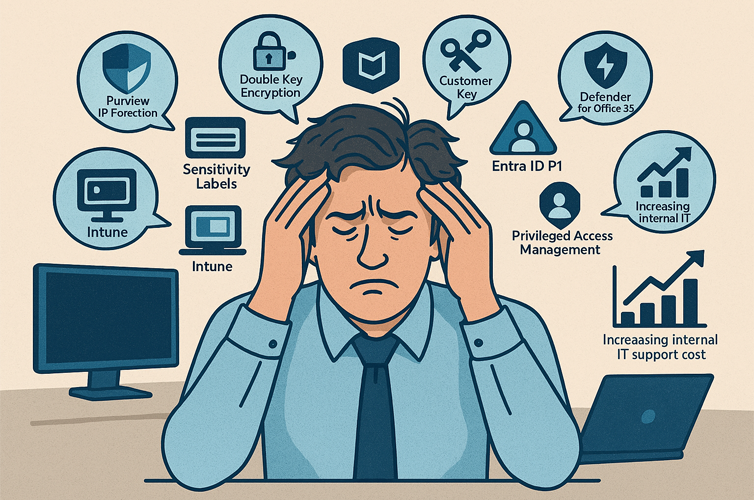
While Microsoft 365 offers powerful security tools, implementing them is not plug-and-play. IT teams often face significant hurdles:

  1. Complexity of Configuration
    • Setting up sensitivity labels, DKE, and Customer Key involves deep technical knowledge.
    • Misconfiguration can lead to data loss or access issues
  2. Licensing Confusion
    • Many users struggle to understand which features are included in which license.
    • Example: Sensitivity labels are available in E3, but automatic labeling requires E5 Compliance.
  3. Integration Fatigue
    • Microsoft 365 E5 includes over 50 security tools across six product families.
    • IT teams must constantly monitor updates, dependencies, and compatibility.
  4. Maintenance Burden
    • Ongoing support is needed to manage policies, troubleshoot access issues, and audit compliance.
    • Even large enterprises report high operational overhead.
  5. User Feedback
    • On forums like Reddit and Microsoft Tech Community, admins express frustration:
      • “Even enabling basic security policies feels risky in a live environment.”
      • “Complex security tooling is costly, inefficient, and lacks integration.”

These challenges highlight the need for skilled IT personnel, clear documentation, and ongoing training.

Which Microsoft 365 Licenses Needed for Securing Confidential Files?

Here’s a detailed comparison of Microsoft 365 licenses and their support for advanced file protection:

LicenseSensitivity LabelsEncryptionDKECustomer KeyDefenderPAMNotes
Business Basic
Limited
Not suitable for confidential file protection
Business Standard
Manual
Basic protection only
Business Premium
Manual + AIP
(Plan 1)
Better, but still limited
Microsoft 365 E3
Manual + AIP
(Plan 1)
Good for manual protection
Microsoft 365 E5
Manual + Auto
(Plan 2)
Full protection suite
Microsoft 365 E5 Compliance
Auto + DLP
Add-on for E3 to match E5 security

Final Thoughts

Securing highly confidential files in Microsoft 365 is possible, but it requires:

  1. The right licenses
  2. A combination of security tools
  3. Skilled IT teams to manage and maintain the setup

For organizations handling sensitive data—such as legal, financial, or healthcare information—investing in Microsoft 365 E5 or E3 with compliance add-ons is essential.

Looking for a simpler way to secure confidential files in Microsoft 365? Titan Workspace’s Secure Vault offers enterprise-grade protection for sensitive folders and documents—even from tenant admins—without the need for Microsoft E5 licenses, Purview, or complex configurations. It runs seamlessly on Microsoft 365 Business Standard, eliminating technical overhead and reducing IT support costs. No extra tools, no complex setup—just secure, compliant file protection built for modern businesses

See Secure Vault in action—book a demo today and discover how easy secure collaboration can be.

How Power Automate Teams Can Be Your Productivity Lifeline?

Have you ever found yourself drowning in a sea of repetitive tasks, wishing for a way to streamline your workflows and automate your team outreach? Let’s talk about today’s ever changing business world, where efficiency is key, and that’s where the power of Power Automate Teams comes into play. This revolutionary tool seamlessly integrates with Microsoft Teams, empowering teams to automate tedious processes and boost productivity like never before. 

Imagine a world where you can effortlessly connect disparate systems, eliminate manual labor, and integrate your data with the cloud, all from within the familiar environment of Microsoft Teams. Power Automate Teams is a game-changer, allowing you to create custom workflows and automate a wide range of tasks, from data entry to approvals and notifications, with just a few clicks. 

What are Teams?

Teams is a robust collaboration platform developed by Microsoft that streamlines communication, file sharing, and project collaboration for individuals and teams. It offers a wide range of features, including channel creation for specific topics, one-on-one or group chats, and audio and video meetings. However, the true power of Teams lies in its ability to integrate seamlessly with other Microsoft products and third-party applications, such as Power Automate. 

Power Automate in Teams empowers users to automate their team outreach and streamline workflows, taking productivity to new heights. With this powerful tool, you can create custom flows and automate a variety of tasks, from data entry to approvals and notifications, directly within the Teams environment. Imagine being able to schedule team meetings, send reminders, and distribute updates with just a few clicks, freeing up valuable time and resources for your team to focus on more strategic initiatives.

Moreover, Power Automate Teams simplifies Microsoft Teams automation, allowing you to connect disparate systems, eliminate manual labour, and integrate your data with the cloud seamlessly.

By leveraging pre-built templates or creating custom flows, you can integrate your favourite apps and services, such as Outlook, SharePoint, and Dynamics 365, with Teams, ensuring a seamless and efficient collaboration experience. 

With its user-friendly interface and extensive features, Teams, coupled with the automation capabilities of Power Automate, becomes an indispensable tool for modern businesses, streamlining communication, boosting productivity, and fostering a collaborative work environment. 

What is Power Automate in Teams?

Power Automate is a game-changing tool from Microsoft that empowers users to streamline their workflows and automate repetitive tasks with ease. This innovative solution seamlessly integrates with a wide range of popular applications, including Teams, Outlook, and SharePoint, enabling users to create custom workflows without the need for extensive coding knowledge. 

Imagine a world where tedious processes such as data collection, approvals, and notifications are handled automatically, freeing up valuable time and resources for more strategic endeavors. With Power Automate, this dream becomes a reality. By leveraging its intuitive interface, users can effortlessly automate tasks like sending notifications to team members when a new assignment is created or updating a spreadsheet with data extracted from emails. 

The true power of Power Automate lies in its ability to simplify work processes and enhance productivity, acting as a versatile tool for both individuals and organizations alike. Picture a marketing team that harnessed the capabilities of Power Automate to streamline their social media posting process.
By creating a workflow that automatically pulled content from their blog and scheduled it to be shared across their social media channels, the team was able to save countless hours of manual work each week. This newfound efficiency allowed them to concentrate their efforts on crafting high-quality content, resulting in a significant boost in their social media engagement and website traffic. 

With Power Automate, the possibilities are limitless. Whether you’re a small business owner, a team leader, or part of a larger organization, this innovative tool empowers you to automate your processes, eliminate time-consuming tasks, and unleash your true potential for maximum productivity and success. 

Is it possible that Teams and Power Automate can Work Together?

Microsoft Power Automate and Teams make a dynamic duo, unlocking new possibilities for streamlining your workflows and boosting productivity. As a powerful automation tool, Power Automate can effortlessly connect with over 200 different Software-as-a-Service (SaaS) applications, including the beloved Microsoft Teams. This integration opens up a world of opportunities to maximize your efficiency and get more done in less time. 

Imagine the convenience of having pre-built templates at your fingertips, ready to automate a wide range of tasks. From saving email attachments to your Dropbox to managing daily task lists, tracking inventory counts, and even monitoring sales leads and customer relationships, Power Automate has got you covered.
It’s like having a personal assistant, diligently handling the repetitive tasks that often bog you down, freeing up your valuable time and mental energy for more strategic endeavors. 

But the real magic happens when you combine the power of Power Automate with the collaborative prowess of Microsoft Teams. By building custom workflows, or “flows,” you can seamlessly integrate your Teams experience with a multitude of actions and events. Picture this: a flow that automatically adds new team members to a specific channel, ensuring everyone is up-to-speed and on the same page from day one. Or perhaps a flow that sends a friendly reminder to your team chat when a task is due, keeping everyone accountable and on track. 

The possibilities are truly endless, limited only by your imagination. Whether you’re posting updates to your team chat when a project is completed, or tracking your progress with a custom dashboard, Power Automate empowers you to work smarter, not harder. Embrace the power of automation and watch as your productivity soars, leaving you more time to focus on the tasks that truly matter. 

Top 6 ways to Automate Microsoft Teams

While talking about the ways to automate Microsoft teams below are the top 6 ways every business users can adapt. 

  1. Monitor communication
    Monitor communication Get email alerts in Teams from Outlook, Slack, email parser, and Office 365. Create Mems from Team mentions or keywords.
  2. Get important reminders
    Get important reminders Send daily or weekly reminders to Teams. Post random GIFs on a schedule in Teams channels. Post upcoming Google Calendar events in Teams.
  3. Track leads
    Send Teams messages for new form submissions from HubSpot, Typeform, JotForm and more. Post new Salesforce leads to dedicated Teams channels.
  4. Keep record of document changes
    Post new or updated rows from Google Sheets to Teams. Send messages in Teams for new Air table records. Create new rows in Google Sheets to send channel messages in Teams.
  5. Streamline tasks
    Create new Trello cards or Notion items automatically from Teams messages. Capture Teams mentions and append them to Evernote notes. Send Notion database items or Trello cards as messages to Teams.
  6. Stay up-to-date on marketing
    Send new Google reviews to Teams channels. Post Eventbrite registrations in Teams. Transmit new Facebook posts and Messenger messages to Teams. Send Twilio SMS messages to Teams.

What are the benefits of using Power Automate in Teams?

Tired of repetitive tasks slowing you down? Power Automate in Microsoft Teams is here to help! It streamlines workflows, boosts collaboration, and frees you to focus on what matters most.

Here’s how Power Automate supercharges your workday: 

power-automate-teams-icon-reclaim-your-time.png

Reclaim Your Time: Let Power Automate handle repetitive tasks, those click-through routines that eat into your valuable time. Get more done and focus on strategic work.

power-automate-teams-icon-effortless-collaboration.png

Effortless Collaboration:  Say goodbye to app hopping and information gaps. Power Automate seamlessly integrates with other Microsoft apps, ensuring smooth data flow and keeping everyone on the same page.

power-automate-teams-icon-automate-teamwork.png

Automate Teamwork:  Imagine automated messages notifying team members, tasks created instantly, and automatic alerts. Power Automate makes collaboration more efficient, freeing you from manual processes.

power-automate-teams-icon-error-free-efficiency.png

Error-Free Efficiency: Manual work can lead to errors. Power Automate eliminates that risk by ensuring consistency and accuracy in your workflows.

power-automate-teams-icon-customizable-solution.png

Customizable Solutions:  No cookie-cutter approach here.  Power Automate offers a library of templates and connectors, allowing you to tailor automations to your team’s specific needs.

Tips to Maximize the Power:

  • Keep it Organized:  As your automations grow, clear organization is key. Maintain a system that makes it easy to find and manage your workflows. 
  • Template Time Savers: Don’t reinvent the wheel! Power Automate offers a treasure trove of templates for common tasks. Leverage them to save time and get started quickly. 
  • Test and Refine:  Just like any tool, regular testing ensures your automations are running smoothly. Take the time to troubleshoot and keep your workflows optimized. 

By incorporating Power Automate into your Microsoft Teams experience, you can empower your team to work smarter, not harder.  Reduce manual work, streamline processes, and unlock a new level of collaboration. 

FAQ’s

How do you automate chat in a team?

  • Create a new flow
  • Define the trigger event
  • Add the Teams connector
  • Authenticate your Teams account
  • Select the target channel and team
  • Compose the message content
  • Test the flow for proper functionality
  • Save the automated workflow

What can you automate in Teams?

Power Automate Teams empowers you to create and manage automated flows for alerts, notifications, and more without leaving the Teams environment. It streamlines approvals by aggregating and automating your team’s approval processes. Additionally, you can quickly trigger scheduled flows using the integrated Flow bot within Teams, enabling seamless process execution and enhancing productivity.

What are the three types of automation?

When it comes to automation in production environments, we can broadly categorize it into three distinct types: fixed automation, programmable automation, and flexible automation. 

Top 6 Procurement Processes Every Business Must Automate

Is your organization’s complicated procurement process riddled with inefficient supplier onboarding procedures, time-draining contract reviews, invoice processing errors that require tedious manual rework, and lack of spend visibility hampering efforts to cut costs?

What if automating repetitive low-value tasks could free up your team to focus on high-impact strategic supplier relationship management instead? Procurement automation through procurement management software and other technology tools offers immense yet often overlooked opportunities to optimize an organization’s purchasing function and spend, frequently without requiring dramatic new hiring or IT investments.

Through paperless purchase requisition automation, automated budget checks, and integration directly into accounting systems, automation systems can also smooth obstacles like staff requisition approval bottlenecks. Could your organization benefit from error-reducing automation in procurement processes? What procurement automation tools on the market today may best suit your needs?

As we explore what, why and how behind procurement automation, evaluating everything from the core benefits to the optimal tools and implementation approach, a larger question underpins it all – just how much time, money and agility is your organization leaving on the table by delaying the automation of procurement processes?

What is Procurement Automation?

Procurement automation refers to the use of digital technologies to streamline and optimize an organization’s purchasing processes and workflows. Manual procurement tasks ranging from purchase requisitions and supplier onboarding to contract reviews, budget approvals, invoicing, and monitoring – typically recorded on paper or disparate systems – leave ample margin for delays, errors, and maverick spend. Procurement automation introduces consistent digital workflows that promote visibility and efficiency into everything from sourcing to payments.

From paperless purchase requisition automation to budgetary checks and discounts to accounting system integration, the key elements of procurement automation are substantial. Companies can tighten spend control, consolidate expenditures across business units, accelerate cycle times for critical purchases, and build strategic supplier partnerships.

By eliminating repetitive low-value manual work, teams can instead focus on value-added activities like contract negotiations, supply risk mitigation and spotting innovation opportunities with existing vendors. While upfront software customization requires some IT investment, commonly quick ROI is achieved via timely payment discounts, averted late fees, and error reduction.

employee-offboarding-workflow

Why should you automate your procurement process?

There are compelling reasons for organizations to invest in automating their manual procurement processes. While talking about the benefits of procurement automation, the list includes factors like:

  • It Maximizes efficiency – Automating repetitive administrative tasks allows procurement staff to redirect their efforts towards more strategic, value-adding activities like contract negotiations, supplier relationship management, risk analysis, and innovation scouting.
  • It Enhances visibility – Automated systems provide detailed analytics on transactions, suppliers, categories, and business units, generating insights that can inform better spending decisions and consolidation opportunities to improve financial performance.
  • It Assists with cash flow – Transactions and invoices reconciled in real-time prevent payment errors, which especially benefits cash flow for smaller firms.
  • It Ensures compliance – Workflows can be configured to enforce your organization’s specific procurement policies, best practices, budgets, or legal rules. Purchase orders are automatically checked against pre-approved supplier lists and contract terms, preventing maverick or off-contract spending.
  • It Cuts cycle times – Review and approval cycles for everything from low-value catalogue purchases to adding new vendors are streamlined, reducing delays from days down to minutes.
  • It Centralizes control – Automated systems assist organizations in centralizing purchasing decisions across business units for greater consistency and control.
  • It Reduces errors – Introducing digital workflows minimizes manual data entry errors throughout the procurement process.

Undoubtedly procurement automation process helps organizations get more value per dollar spent, unlock staff productivity, ensure compliance to policies and contractual terms, improve cash flow, and support efficient, scalable growth.

Top 6 Procurement Processes to Automate for Maximum Efficiency Gains

Streamlining procurement through automation should target the highest-impact areas prone to delays, errors, and inefficiency. Here are 6 procurement processes that see dramatic improvements from automation:

Purchase Requisitions

Procurement process automation accelerates purchase requisitions through the system. It also removes redundant hierarchy layers that manually checked and forwarded every request. This saves time for both requestors and approvers.

Purchase Orders

43% of companies have immediate purchase order process gaps despite having formal systems. Automating POs enhances productivity through configurable rules that route each order correctly. It also creates an audit trail for compliance.

Invoice Management

Lost purchase orders and goods receipts lead to manual invoice processing, causing payment delays and compliance issues. Automated procurement tracking system provides three-way matching of invoices to POs and receipts in one click. Touchless processing approves low-risk invoices without reviewer action.

Vendor Management

Centralized vendor performance data aids selection and supports ongoing relationship management. Automation quickly surfaces vendor grievances for prompt resolution, ensuring a mutually productive partnership.

Contract Management

Without organization, finding and monitoring contract renewals is incredibly challenging. An automated, centralized system tracks all critical contract dates and sends review reminders to prevent last-minute scrambles.

Sourcing

Traditionally an extremely manual process of evaluating suppliers across fragmented systems. Automated sourcing centralizes bids, supplier communication, and comparisons on one platform. Data-based recommendations simplify supplier selection for each sourcing event.

With a purpose-built procurement automation eliminates productivity drag from dull administrative work. It spotlights process constraints requiring optimization. And crucially, it provides the data foundation for more strategic supply chain and spend management decisions. The key processes outlined above see the most dramatic turnarounds, making them prime automation targets.

Why choose Titan Workspace Procurement Automation?

Titan Workspace stands out for automate procurement system because it is natively integrated within Microsoft 365, leveraging SharePoint and Power Automate. Streamlining starts with our purchase requisition workflow automation.

Titan Workspace brings accuracy, transparency, and governance to this review process. Our ready-to-use workflow provides:

  • Itemized summary of products/services being requested
  • Four levels of sequential approvals after initial submission
  • User-friendly dashboard to track pending approvals
  • Audit trail capturing each approval decision
  • Email notifications on status changes

By automating purchase requisitions within Microsoft 365, Titan Workspace simplifies the initiator experience while applying appropriate checks and balances. Confidential data remains secure within the Microsoft cloud. Approval chain visibility combined with a complete audit trail enables good governance and policy compliance.

FAQs

What is automation in procurement?

The use of technology to streamline manual purchasing processes like requisitions, vendor management, invoicing.

What are the 4 types of procurement?

The 4 types of procurement are Direct, indirect, services, and capital procurement.

What is RPA in procurement?

RPA uses software bots to automate high volume repetitive admin tasks.

Why automate procurement?

To eliminate inefficiencies, enhance visibility/control, centralize spend, tighten compliance, and redirect staff capacity to strategic work.

Create Document Workflow for Business Process

Do you want to streamline your tasks? Do you want to increase productivity while processing your ideas? Documenting a workflow is just the right way to do it. Workflow is nothing but the work flowing in a specific sequence to fulfill goals. The fixed task arranged in the required order ensures a consistent workflow without confusion and hurdles. Learning to document and smartly write the workflows can boost efficiency and result. So, keep reading to know more about the ways to document effective workflows.

Why document your workflow?

Now that you have a piece of prerequisite knowledge about the meaning of workflow, it is crucial to know the need to document workflows. The workflow should make value and fulfill the assigned objectives throughout.

Every team member has their perspective towards analyzing the workflow and carrying out the task, which results in differences in ideas and opinions. These differences might cause confusion and controversy, thus affecting the efficiency of the work. In such times documenting workflow comes in handy because it provides a standard outlook about the work and simplifies the work and processes for everyone in the team.

Different Steps to Documenting Workflows.

  • Choose the right workflow to document

The documentation workflow process starts with choosing the workflow to manage that should be more prioritized than others. Usually, all businesses and companies have more than one workflow unless they are small-scale, so choosing the right one to document ensures accuracy.

The document you will first choose should cater to the customers’ needs and solve their issues, if any. It should optimize the services for the target audience. One of the other ways of the working document can be choosing what gives more profit to the company. You can also choose a workflow that needs to be worked on or made more efficient and document it first.

  • The purpose matters

Before the how-to document workflow questions, the purpose needs to be fixed. If the purpose is to make a skillful and good document, then without the inclusion of too many details and tools, this can be done. But if the purpose of the workflow document is to analyze the inefficacy and improve the workflow for an efficient outcome, then the documents should be done accurately. Also read about How to improve workflow efficiency

You can also let the purpose decide who gets access to the workflow documents, and if your aim is optimization, then you should have a specific team for that task and show the document to them only. This way, any confidential information of the company can be protected.

  • Collection of data

After deciding on which workflow to document and the purpose behind it, you should collect all the necessary information and data about the workflow, the data should be both qualitative and quantitative so that the mapping of work can be done with precision.

Quantitative data usually deals with the numbers of workflow, and the data are collected after thorough observation. Qualitative data usually deals with the beginning and end of the workflow, the steps involved in the process, the time required to achieve the objectives, and what changes can be brought to improve the process.

  • Visual Mapping

The mind remembers what the eyes see. The never-ending question of how to document a workflow becomes easier to answer when presented to the team through a PowerPoint presentation and flowcharts involving different symbols, pictures, and shapes and connecting it all to bring the whole workflow process to life.

A flowchart visualization of what works are to be done and the expected outcome of the work is presented effectively, giving a clear understanding to the people involved in that particular workflow. Documentation workflow using flowcharts is important to leave an everlasting impression about the work and the targeted objectives.

  • Set your deadline

After making a workflow document, you should assign the right amount of time for each step or process so that the workflow goes smoothly and the objectives are achieved in a time that benefits the company.

Good time management in workflow documentation can be a boon for the organization. Work should be done at the right time. Neither it shall lag nor it shall be done in haste. Determining the time frame of your workflow document makes the whole process better.

  • Be open to innovation

After the whole Workflow is documented and the process that shall be carried out is mapped and visualized, you should be open to taking reviews and opinions from the team or the stakeholders who are closely involved with the document. While it is tough to stop the difference in opinions, you should be open to good ideas and smart rectification in the workflow process.

You should keep in mind the variables that may come after the presentation of the workflow documentation, and you should respect the stakeholders’ ideas and proceed when most of them are fairly satisfied with the workflow document. Involving the team members in the workflow document deeply impacts their work and optimizes the achievements.

Learn more: How Would You Describe an Intelligent Workplace?

Analysis and Improvement: Ways of Working Documents

Among all other ways of working documents, this plays a comparatively more pivotal role than the rest. Even though your purpose is to make a workflow document, constant improvement in the workflow process is necessary for efficient output. Hence it would be best if you tried not to skip this step and rather analyze the workflow document from time to time for any inefficiency or bottlenecks and improve it.

While analyzing the data, you should keep in mind the data you collected, both qualitative and quantitative, and see if the document can be developed any further for a good outcome. Once you make the required changes in your documents, you should allow the stakeholders to look into it to optimize the included changes so that objectives can be achieved properly and accurately.

Conclusion

So, an accurate and smart workflow document can provide the process of your work a vision and provide your stakeholders a map towards the goal. So, if you keep in mind these steps as mentioned earlier, then for the success of your next project sky is the limit! Learn more about SharePoint Document Management System

Learn more: How Would You Describe an Intelligent Workplace?

FAQs:

What are the three basic Components of a Workflow?

The three basic components of a workflow are a trigger or the starting point, the work, which is the most important and complex one, and the outcome or result.

What are the steps of workflow?

The workflow steps include identifying the workflow process, implementing the best software to manage the process, selecting the work that should be automated to save time, analyzing the efficiency of the workflow process, and finally, modifying the process for optimization.

What are the examples of workflows?

Some examples of workflows are an Automated sales order system, new employee onboarding, Vacation requests, Travel request authorization, recruitment, Expense claims request, incident reports, document approvals, and purchase orders.

What are the activities of document-based workflow?

The activities included in the document-based workflow include the creation of the document, routing of the document to agents, reviewing the documents, approval of the document after a thorough review, saving the document for future use, and removing documents that are no longer necessary

Learn More about: Timesheet Automation and Low code Automation

Introduction of External sharing in Microsoft Office 365

One of the interesting features in Microsoft SharePoint is External Sharing. This features lets users of an organization share content with people outside the organization (such as partners, vendors, clients, or customers). External sharing feature can also help in sharing between licensed users on multiple Microsoft 365 subscriptions if an organization has more than one subscription. Planning for external sharing should be included as part of overall permissions planning for SharePoint in Microsoft 365.

External Sharing SettingsExternal Sharing settings can be applied both in Organization level and Site Level. If External Sharing needs to be enabled for any site, it has to be first enabled in Organization level after which it can be restricted in the other sites. If the site’s external sharing option is different from an organization-level sharing option, then the most restrictive value will take precedence.

Security and PrivacyIf there is any confidential information which should not be shared externally, then the external sharing for that site should be turned off and additional sites should be created for external sharing. This will help in managing the security risk by preventing external access to sensitive information.

Sharing PermissionsFollowing are the sharing permissions that can be enabled on the site:

Anyone: User with whom files are being shared don’t need to Sign-in.

New and Existing guest:Guests will require to Sign-in to access the files.

Existing guests only:Guests are needed to be part of the Organizational Active Directory.

Only people in your organization:External sharing won’t be allowed.

If the site is having external sharing as ‘Anyone’ then users are not required to Sign-in or to be added in the Organization Active Directory.

If the site is has external sharing as ‘New and Existing guest’ then files can be shared with new users or to the existing guest members in AD. If they are new users then after signing up, they will get added to the Organization Active Directory

If the site is having external sharing as ‘Existing guest only’ then the Azure AD admin will need to add the user first as a ‘Guest’, after which the external user will receive an invitation and once accepted, he will be part of the tenant.

If the site is has ‘Only people in your organization’ then external sharing can’t be done from that site.

What happens when Users shareWhen users share sites, recipients will be prompted to sign in with.

  • Microsoft accounts
  • A work or school account in Azure AD from another organization

When users share files and folders, recipients will also be prompted to sign in if they have:

  • A Microsoft account

These recipients will typically be added to your directory as guests, and then permissions and groups work the same for these guests as they do for internal users.

Because these guests do not have a license in your organization, they are limited to basic collaboration tasks:

  • They can use Office.com for viewing and editing documents. If your plan includes Office Professional Plus, they can’t install the desktop version of Office on their own computers unless you assign them a license.
  • They can perform tasks on a site based on the permission level that they’ve been given. For example, if you add a guest as a site member, they will have Edit permissions and they will be able to add, edit and delete lists; they will also be able to view, add, update and delete list items and files.
  • They will be able to see other types of content on sites, depending on the permissions they’ve been given. For example, they can navigate to different subsites within a shared site. They will also be able to do things like view site feeds.

If your authenticated guests need greater capability such as OneDrive storage or creating a Power Automate flow, you must assign them an appropriate license from Microsoft 365 admin center

Stopping sharing

You can stop sharing with guests by removing their permissions from the shared item, or by removing them as a guest in your directory.

You can stop sharing with people who have an “Anyone” link by going to the file or folder that you shared and deleting the link.

Steps to create external user in Azure AD

1. Login to Azure Portal and click on User (1)

Number-Image-1

2. Click on ‘Add guest user’ (2)

Number-Image-2

3. Select ‘Invite User’ (3), fill the details (4) and click ‘Invite’ (5)

Number-Image-1

4. Once invited, user will get added in the users list, as shown below:

Number-Image-4

Why Are Governments Turning to No-Code Platforms?

Gone are the days when digital transformation was only exclusive to businesses and private sector. Now for a change ahead even public organizations are also opting to bring a transformation in the way of doing things.

Interestingly, governmental or public organizations are now aiming to significantly gain benefits of streamlining operations, optimizing processes and boosting their overall efficiency. For them no-code development platforms have emerged as a powerful tool.

Government officials worldwide can enhance their services, reduce IT costs and improve the quality of work by bringing these no-code platforms in use. To understand this let’s have a closer look and explore why no-code platforms are ideal for public sectors.

No-Code Platforms are Innovations without Risk

Digital Innovation is what public sector urgently needs to bring a change in their processes. Slow technologies, traditional and inefficient processes and complex user interface leads to misunderstandings, delay in projects and wasting hours behind single tasks. Learn more about Automated Workflow’s impact on Digital Transformation

This all makes a major contribution towards decreased citizen satisfaction. Government officers are often in dilemma because of this situation.

However do look out for change but are constrained by legacy software, limited budget approvals and insufficient IT resources. The process to replace the existing solution is expensive and time-consuming. On the other hand customized app development requires more resources and code than teams can even handle.

But, no-code platform application development has the right solution to offer. Governments or public service units can leverage existing system and data, tailoring application without learning any coding skills.

With no-code platforms are authorized to rapidly design, deploy and test with end-users. In addition to this it also enables quick iterations and changes.

The best part? No-code is a risk free approach to innovation. It facilitates rapid experimentation and failure, helping governments discover optimal solutions for teams and processes

Business Processes and Technologies in action together

Administrations must create business procedures and operations that incorporate difficult, dynamic laws and regulations, as well as a number of stakeholders and users.

They require apps that can adjust to their particular working styles. At that point, using software outside of the box can become problematic. The majority of pre-built apps are created with a specific goal in mind.

Teams will probably need to devise a workaround if a business process exists that isn’t related to that goal in order to complete the task. Code-customized apps, on the other hand, might function well up until they require modifications, at which point businesses would have to wait in line for IT support.

Governments require a framework for rapid application development that can accommodate their distinct working methods, and that platform is no-code development software.

Since drag-and-drop is so simple, citizen developers can quickly construct programs around the demands of users, resulting in not only functional but also exciting apps.

The application can support intricate rules and business procedures with a platform like as Titan Workspace, thanks to declarative conditions that the citizen developer can provide.

why-are-governments-turning-to-no-code-platforms-IB1.jpeg

Titan Workspace: Empowering Governments with Secure, No-Code Solutions

Titan Workspace, no-code solution providers can help governments to build and deploy secure, customized application without any requirement for extensive coding knowledge.

In those domains, they can simplify and automate business procedures like case management, regulatory compliance, grants management, and more.

They can also develop apps for administrative domains like welfare, employment, immigration, education, and healthcare, to mention a few.

Every solution developed on a no-code platform such as Titan Workspace allows governments to guarantee the security of the private information they handle on a daily basis.

This is so that data is kept under current security rules on no-code systems like Titan Workspace, which respect the native security for all accessed data.

Key Benefits of Titan Workspace for Governments:

  1. Rapid Development: Applications or workflows can be created in less time in comparison to traditional custom development.
  2. Flexibility: Customized solutions to fulfil the specific government needs and adapt to changing needs and work culture.
  3. Security: With various security features, security of the sensitive government data can be ensured.
  4. Efficiency: Streamline operations, reduce manual tasks, and improve overall productivity.
  5. Cost-Effectiveness: Lower development and maintenance costs by eliminating the need for extensive coding resources.

Learn more about Microsoft Teams Features and Workflow Automation with Microsoft 365

How SharePoint is Transforming Patient Management Systems?

In the last few years, the healthcare industry has been witnessing a rapid digital transformation. If we call out the key players in this revolution then, Microsoft SharePoint has made it to the top. It is revolutionizing how hospitals and healthcare organization manage patient data and streamline their operations. SharePoint is transforming the Patient Management System and improving healthcare delivery, but how? For getting the answer you must continue reading.

Understanding Patient Management Systems and SharePoint’s Role

A Patient Management System is a comprehensive software solution designed to handle various aspects of hospital operations, from patient records to billing. SharePoint, a versatile platform from Microsoft, has emerged as a powerful tool for creating and managing these systems. But what makes SharePoint so suitable for healthcare?
Learn more about : SharePoint Knowledge Management

The Power of SharePoint in Healthcare

SharePoint offers a centralized interface that promotes workplace collaboration, seamless documentation, and workflow automation. These features make it an ideal foundation for a robust Patient Management System. Whether you’re running a large hospital or a small clinic, SharePoint can be tailored to meet your specific needs.

Key Challenges in Healthcare Management

Before we explore how SharePoint addresses these issues, let’s look at some common challenges faced by healthcare providers:

  • Inaccurate or missing patient charges
  • Difficulty in reviewing and updating patient data
  • Inefficient communication between departments
  • Manual workflow processes
  • Regulatory compliance and documentation
  • Data security and HIPAA compliance
how-sharepoint-is-transforming-patient-management-system-IB1.jpeg

How SharePoint Management System for Hospice Tackles These Challenges

Centralizing Patient Data

SharePoint provides a unified platform where all departments can access and update patient information. This centralization helps eliminate errors and missing charges, ensuring that billing is accurate and complete.

Streamlining Data Review and Updates

With SharePoint, healthcare providers can set up automated workflows for reviewing and updating patient data. For instance, when a nurse enters new patient information, the system can automatically route it to the appropriate reviewer, ensuring that all data is verified and up-to-date.

Enhancing Inter-departmental Communication

SharePoint’s collaboration features allow different departments to communicate efficiently. For example, if the billing department notices a discrepancy, they can easily flag the issue and notify the relevant clinical staff, all within the same system.

Automating Workflows

  • One of the most powerful features of a SharePoint-based Patient Management System is its ability to automate routine tasks. From patient admissions to appointment scheduling and claims processing, SharePoint can streamline these processes, saving time and reducing errors.

Learn More : Workflow Automation with Microsoft 365

Ensuring Regulatory Compliance

Healthcare organizations must adhere to strict regulatory requirements. SharePoint allows for the creation of dedicated folders for storing and managing compliance documents, making it easier to stay on top of regulatory obligations.

Maintaining Data Security

SharePoint offers robust security features that help healthcare providers maintain HIPAA compliance. Access controls, audit trails, and encryption capabilities ensure that patient data remains secure and only accessible to authorized personnel.

how-sharepoint-is-transforming-patient-management-system-IB2.jpeg

The Benefits of Implementing a SharePoint-based Patient Management System

  • Improved Accuracy: By centralizing data and automating processes, SharePoint reduces the risk of errors in patient charges and medical records.
  • Enhanced Efficiency: Automated workflows and easy access to information allow healthcare staff to work more efficiently, spending less time on administrative tasks and more time on patient care.
  • Better Collaboration: SharePoint’s collaborative features foster better communication between departments, leading to improved patient care and smoother operations.
  • Increased Compliance: With built-in tools for document management and access control, SharePoint helps healthcare organizations maintain regulatory compliance more easily.
  • Cost Savings: By streamlining processes and reducing errors, a SharePoint-based Patient Management System can lead to significant cost savings for healthcare organizations.

Read more: Workflow Automation for Procurement Process

Real-world Applications of SharePoint in Healthcare

Let’s look at some practical examples of how healthcare providers are using SharePoint:

  • Patient Record Management: Hospitals are using SharePoint to create centralized repositories for patient records, allowing authorized staff to access and update information from any location.
  • Appointment Scheduling: SharePoint’s calendar features are being utilized to create efficient appointment scheduling systems, reducing no-shows and improving patient satisfaction.
  • Inventory Management: Healthcare facilities are using SharePoint to track medical supplies and equipment, ensuring that they always have the necessary resources on hand.
  • Staff Training and Development: SharePoint’s document management capabilities are being leveraged to create comprehensive training programs for healthcare staff, ensuring that everyone is up to date on the latest procedures and regulations.

Implementing SharePoint in Your Healthcare Organization

If you’re considering implementing a SharePoint Management System for hospice or any other healthcare facility, here are some steps to get started:

  • Assess Your Needs: Identify the specific challenges your organization faces and how SharePoint can address them.
  • Plan Your Implementation: Develop a comprehensive plan for rolling out SharePoint, including training for staff and data migration strategies.
  • Customize Your Solution: Work with SharePoint experts to customize the platform to your specific needs, ensuring that it aligns with your workflows and processes.
  • Ensure Compliance: Make sure your SharePoint implementation meets all necessary regulatory requirements, particularly concerning data security and patient privacy.
  • Provide Ongoing Support: Offer continuous training and support to your staff to ensure they can make the most of the new system.

Conclusion

By addressing key challenges and streamlining operations, SharePoint is helping healthcare providers deliver better patient care while improving efficiency and reducing costs. As the healthcare landscape continues to evolve, SharePoint is likely to play an increasingly important role in shaping the future of patient management system.

FAQ

  • What is SharePoint used for in healthcare?
  • SharePoint provides a secure and centralized repository for storing, organizing and managing electronic medical records.
  • Can I automate workflows in patient management systems?
  • Yes, automated workflows can be integrating into the existing system to speed up the process.